Accelerating the Mobile Web | Project AMP

O Projeto AMP é uma iniciativa da Google para melhorar a performance das páginas web em mobile. AMP HTML faz com que as páginas carreguem instantaneamente em dispositivos móveis. O WordPress irá brevemente desenvolver um plugin de AMP…

Today we’re announcing support for Accelerated Mobile Pages for WordPress, a new open source initiative spearheaded by Googleto dramatically improve performance of the mobile web.

“Speed has always been a cornerstone of Google Search and we’re thrilled to be working alongside others in the tech industry and publishers around the world to bring the Accelerated Mobile Pages Project to life.”
—Dave Besbris, VP Engineering, Google Search

The mission of the WordPress project is to democratize publishing, and with 24.6% of sites running the software—making WordPress the most popular CMS on the web—we feel we’re making good progress.

That success has been built on our openness, our flexibility, and our commitment to delivering the best possible user experience—both for publishers, and their readers.

To that end, we are developing a plugin to support the AMP specification, enabling publishers to produce AMP-formatted content from WordPress without lifting a finger (other than clicking “publish”, naturally). The plugin is still in early stages, but you can see it in action onWordPress.com or even this very post.

If you’re interested in kicking the tires, submitting improvements, or squashing bugs, we’d love your help.

We believe that open source is one of the most powerful ideas of our generation. We strongly and actively support a free, open internet. We’re very happy to support an open source initiative like AMP, which brings publishers and technology companies together to make a better mobile experience for everyone.

Fonte: Accelerating the Mobile Web | WordPress.com VIP

6 Secrets Designers Won’t Tell

Trade secrets are hard to find out. Designers try to keep them as secret as they can, but to no success. Well, they won’t get any help from us. We are here to share tips and tricks, so every creative professional’s dream comes to reality.We have rounded up six secrets designers won’t tell.

Take these secrets kindly – they won’t make you a better designer nor they will help you win awards. They are just useful tips and tricks that will probably suit your needs. It all comes down to how you want to work. Scroll down below and see what all the fuss is about.

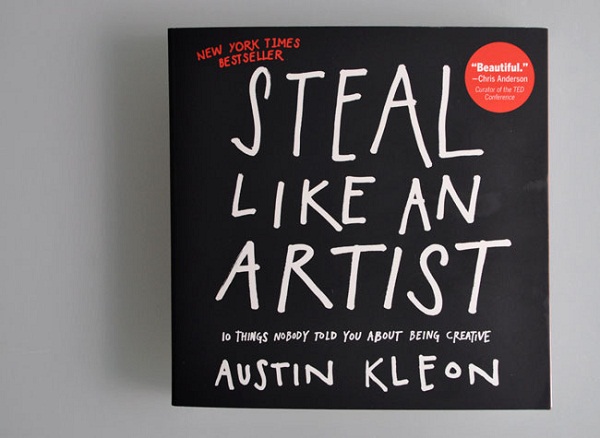
1. Steal stuff

6-Secrets-Designers-Won’t-Tell-1

Image source

Yup. Steal stuff, and make it your own. I don’t mean plagiarize other people’s stuff. I mean get inspired by their work, take their craft and make something of your own. Designers will never admit to this, but every successful creative professional has done this, and will do this.

Let’s put it this way – you have an idol in the creative business, he is an incredibly talented artist, and you want to become like him. First off, read what he reads, visit places that he visits. Be in the medium that he puts himself constantly. See what inspires him and steal it for yourself. Make it your inspiration. Adapt it to your needs.

You will soon be on the way of stealing his clients if you are so passionate about the work you do. There is no shame in being better at the game than your peers. It’s a pity of not playing it, regardless of the outcome.

2. Procrastinate as long as you can

6-Secrets-Designers-Won’t-Tell-2

Image source

Inspiration will hit when you least expect it, so why not do the things you love the most? Procrastinate until you can work, those are words that I live by. Explore different things and ideas. Read a good book, watch an awesome movie that you are postponing for such a long time.

Or you could do the most menial task there is like arranging your music collection backwards, by age – what album is the closest to Michael Jacksons last album. By all means, go crazy.

We all know the fear of a deadline creeping, and how we fluster getting back to work. Eventually, you will have to get back to work and leave the art of procrastinating for another day.

3. Don’t overpromise

6-Secrets-Designers-Won’t-Tell-3

Image source

You will be inclined to overpromise a lot of stuff, just to snag that client under your fingers. The most important thing here is to realize how much time you have on your hands, and if you can finish the project that you promised.

You just promised your client that you will have three revisions, and a new layout for him till’ tomorrow, didn’t you? Keep doing that and you will lose them faster than saying – Deadline not met. Be sincere and realist, so you have time to meet his expectations of quality and quantity.

4. Pretty doesn’t count

6-Secrets-Designers-Won’t-Tell-4

Image source

Don’t just make your project eye-candy, make it also fully responsive. Prioritize on the functionality and how will it make it get viral, rather than just creating only a beautiful design. People will stare at the beauty, but they will come back if it is useful.

Pretty doesn’t count if you don’t bring anything else to the table, and pretty will fade soon in front of other mesmerizing things that will eventually appear. Think on the long-term, and how your project will stand the test of time. Will it be remembered? Or will it be forgotten?

Don’t get me wrong here, it is nothing bad in creating a beautiful design, but you need utility for it to flourish and grow to its full capacity.

5. Don’t prioritize on being unique

6-Secrets-Designers-Won’t-Tell-5

Image source

John Oliver once said – “ I like to think of news and advertising as the separation of guacamole and Twizzlers. Separately, they are good. But if you mix them together, you make them both gross.”; if you prioritize on only creating unique projects, of only shocking your peers and the world, you will meet a dead end, filled only with frustration, and despair. You don’t have to be ashamed on creating designs that just fit the norm.

By doing so, you will have the opportunity of finding your niche, on being unique by exploring the standards and pushing boundaries to the limit. When you get past the limit that was set by your predecessors, you will not recognize it as being unique, you will just tell yourself that you are in the norm. Others will do that for you, others will applaud and gawk at your designs, and call them unique.

6. Finish one before starting another

6-Secrets-Designers-Won’t-Tell-6

Image source

Working on different projects and expecting to get them all to be innovative has to be one of the silliest things I have heard in a while. Focus on each task appropriately, and indulge in the art form the proper way. If you get clustered with tons of projects, not only they will lack the quality that you and the client desire, but they will become a burden, and you will soon start hating the thing that you love the most – designing, creating art.

Inspiration will hit, but where to use it? How to use it? It will become a stressful situation that you don’t need in your life. This doesn’t mean that you should work on just one project at a time, you create your pace, but be careful how you multitask – it can lead to ruin.

Take into consideration these neat tips and tricks, these disclosed secrets and use them wisely. Do you have one that you would like to share with us? Feel free to post in the comments section below. We would just love to hear you out!

Editor’s Note: This post was originally published in September 2014 and has been completely revamped and updated for accuracy and comprehensiveness.

Fonte: 6 Secrets Designers Won’t Tell, by Claudia

Make Any WordPress Theme Responsive (Mobile-Friendly)

Here is the scenario: You’ve searched high and low and found the perfect WordPress theme for yourself or your client. But, there’s one big problem: it’s not mobile-friendly. With mobile web traffic soon expected to exceed desktop web traffic, being mobile-friendly is critical.

I often have to go through the exercise of converting a non mobile-friendly WordPress theme to be mobile-friendly, or “responsive” (the term used to describe a site that uses the size of the browser to reconfigure itself for optimum viewing). In this article, I’ll guide you through the process I use.

Note, I am assuming you are familiar with HTML and CSS here. I’ll give you some broad strokes, along with some detailed code, but of course much of the work will depend on the inner workings of your theme. Hopefully, you can use some of the principles I talk about for your project.

Let’s look at one of the most common layouts for a WordPress theme, namely, one with a header, menu bar, main content section, sidebar, and footer. Here is a graphic depiction of this structure:

Making the Header Fluid

The first thing to do is make all of the elements “fluid” or variable-width.  Ironically, in the early days of web development, everyone made containers fluid.  When we discovered that this made things hard to control, we went to fixed size containers.  And now we’re back to making everything fluid again!

Anyway, you need to find the main containers (divs) for the major sections of your site, as indicated in my diagram above.  An easy way to do this is to use the Firebug Firefox plugin or Google Chrome.  If you install it, you can hit F12 or CTRL-SHIFT-I (or ALT-CMD-I on a Mac) and it will tell you the name of all of the containers surrounding any element you click on.  It’s super-useful for this type of work.

For example, your header might be contained in a div like this:

Next, look at the CSS for that div.  It might look something like this:

To make this element fluid, remove the fixed with and change it to look like this:

Your header should now be fluid.  The magic is accomplished by defining the width using a percentage instead of fixed pixels.  The “max-width” property prevents it from getting too big.  If you want, you can add a “min-width” if you want to prevent the window from getting too small.  I generally use a value of 300px for my min width.

Re-size the browser to see if it worked!  If not, there might be elements inside the header that are keeping it from shrinking.  Search for any fixed-width CSS definitions.  You’ll have to change them to be variable using percentage-based widths.  I’ll describe how to do that by showing you how to resize the main content block and sidebar.  Other problems in the header, like the text being too big, will be fixed later with media queries.

As elements wrap, the containers will need to get taller.  Remove any heights that are set in pixels so they can expand as needed.

If your header still isn’t fluid, it might be inside a container that has fixed width.  Use the tools to search for those, and make them fluid.

Content Block and Sidebar

Let’s assume your main content and sidebar containers look like this:

Let’s say the corresponding CSS looks like this:

Now, the numbers might not exactly add up to 900 due to padding and so forth, but for simplicity, let’s say they do.

As we re-size the browser, we want to maintain the ratio of the container and sidebar widths.  Here’s how we accomplish that:

Basically, you need to work out the ratio of the contained elements to the width of the containing element, and set your width equal to that percentage.

If you want to add padding or margin, express those as percentages as well, and adjust the other widths accordingly so the total is always 100% or less. This is really key. The widths of all of the elements that take up horizontal space need to be expressed in percentages. Note that you can use max-width to prevent things from getting too big.

If the elements are not re-sizing, look for absolutely-sized elements within those divs.  Convert those widths, margins, and padding to percentages as well.

Let’s say there is a div within #content called #single-post with width 550px and 25px margins on either side.  The CSS for that would look like

Since this div is contained in another div, the horizontal widths should total 100%, not 66.7%.

Use this technique if your header is not re-sizing.  Repeat the same process that you used on the header with your footer.  If anything isn’t re-sizing, check for any fixed-width contained elements.

The Menu Bar

OK, now all of the elements on the site should be resizing nicely as you adjust the width of the browser window… except for the menu bar.  The menu bar can be tricky, since it can be implemented in a variety of ways.

The easiest way to deal with the shrinking window is to simply have the menu “double-back” on itself and wrap.  We’re not going to hide the main menu with a button in this case.  Here are some screen shots to show what I’m talking about.  First we have the desktop version.

Here is the mobile version.  Notice how the menu bar just folds back on itself.  We are not doing a fancy menu button here, but it’s still very usable, and less work.

Mobile configuration

Okay, since the structure of menu bars can vary widely, I’m going to do some hand-waving and give you some broad brush strokes here.  It’s impossible to give a step-by-step method that will work in all cases, unfortunately.  Here’s the general idea though.

First, replace any widths defined in pixels using the techniques above.  That alone is probably not enough.  Menu bars often have fixed height, so you’ll have to replace any heights defined in pixels with “min-height” along with “height: 100%”, or something to that effect.

In my case, this only partially worked.  The menu wrapped in a weird way until I added “display: inline-block” to the div containing the menu items.  After I did that, the menu was no longer centered, so I had to wrap it in a new div which was centered.

After all of the hoopla, my menu was centered and wrapped when I made the browser narrow, but it took me over an hour of experimentation to figure out.  More fancy solutions, like a menu that collapses into a Menu Button (sometimes known as a “hamburger”) require JavaScript or jQuery… I reserve that for a future article.

Resizing Images

Okay, hopefully your containers are now resizing, but what about the images? Chances are they were hard coded with dimensions like this:

To make them resize properly, the technique is similar to resizing divs.  Remove the hard-coded width and height from the images and replace them with “width:100%;” and “max-width:” set to whatever you want the normal desktop size to be.  The result is this:

Images set up this way will shrink down when you resize the browser window.

Media Queries

OK, now we have a completely fluid layout that resizes as you make the browser window narrow.  But, it still looks terrible on a thin mobile device screen because the elements are too scrunched up.  We need to separate them so that only one column of content is visible at a time.  In addition, your header probably looks bad, and we’ll have to fix that too.

These problems can be fixed through the use of media queries in your CSS file.  Let’s fix the main content container and sidebar first.  Play with the browser size and determine roughly at what point you want the sidebar to hop below (or above) your main content.  Estimate or measure in pixels how wide the browser window is at that point.  For me, it was at 540 pixels.

Next, we have to “undo” the widths we defined for the content and sidebar to make them fill the whole width of the screen as follows:

The key is making the widths 100% (or 94% in my case, with 3% margin on each side).  Experiment with these settings until  you get what you want.

The Header

We are almost there.  The header probably still looks bad when you make the browser really thin.  For example, the font size might be too big and it might wrap or do other unpleasant things.  This is simple to fix.  Let’s say the original font size was 36px, which is too big when the screen is narrow.  Pick a point where you want to resize it, and add the code below.  For me, the break point was at 400px wide, where I resized the header text to 28 pixels as follows:

The Final Bit

I’ve undoubtedly glossed over many of the little details in your theme that you will need to fix to make it completely responsive. But hopefully with the broad strokes I’ve given you, you’ll be able to fill in the details.

But even after you get your site fully responsive, you might be surprised to still see a shruk-down version of the non-responsive site when you view it on a phone!  What gives?

You have to add one last line of code to tell the phone not to “zoom out” when viewing your site.  It’s easy.  Just add this line to the head section of your HTML code:

This tells the phone’s browser not to zoom out when viewing your page.  Everything should be kosher now.

If you want to see a real example of a non-responsive WordPress theme that I made responsive, check out http://disablemycable.com/blog. The CSS file shows these techniques.

Hope this has helped!!  Let me know how it works for you. – Brian

I am a freelance web developer and consultant based in Santa Monica, CA who uses WordPress, PHP, and JavaScript to create web applications for small businesses and organizations.

Fonte: Make Any WordPress Theme Responsive (Mobile-Friendly)

Developing WordPress Themes Using Responsive Frameworks

It used to be you only had to worry about website consistency across multiple browsers, but now we have to look at the bigger picture – consistency across multiple devices. The computer used to be our only gateway to the Internet, but now we jump online from our phones, TVs, tablets and who knows what else will come down the pipe. Having your website appropriately render and perform on any device should be a top priority this year.

Responsive design is all about making things fluid and adjusting according to screen size. Although WordPress doesn’t always play nice with responsive design methods, there are ways it can be achieved. How responsive you decide to make your website is really about how much time you want to spend doing it.

There are several responsive frameworks out there to choose from. You might want to spend some time investigating each one to determine which has the included features your project might require. If you aren’t sure where to start, here are a few to consider:

Bootstrap from Twitter is built on a responsive 12 column grid. It has included fixed- and fluid-width layouts based on that system. It also comes with support for optional JavaScript plug-ins such as an image carousel, Typeahead, togglable tabs, and many more.

Less Framework is based on 4 layouts and 3 sets of typographic presets. Less Framework uses a default layout as a starting point and then uses CSS3 media queries to code ‘child layouts’.

Foundation is a grid system based on 12-columns that do not have a fixed width; they can vary based on the resolution of the screen or size of the window. Foundation comes pre-packaged with buttons and built in form styles, alerts, and more.

YAML is a multi-column layout based on a grid system with percentage widths. It comes with several built in features and supports several jQuery plugins such as Accessible Tabs and SyncHeight.

This list of frameworks is hardly complete, but for the sake of this tutorial, I’m going to show you how to incorporate Foundation into your next WordPress theme.

To get started, go download Foundation and add the files to your css and js folders in your theme’s directory. The easiest way to add the required files to your theme would be to use wp_enqueue_script and wp_enqueue_style.

For this tutorial I’m going to show you what you place in your functions.php file to make Foundation work right off the bat, but for more details on adding files this way, check out the tutorial on how to include JavaScript and CSS in your theme.

To add the needed JavaScript for Foundation to work properly in your theme, you need to create a function that calls the wp_enqueue_script to serve them up.

Next, add the Foundation stylesheets to make the grid flexible. Paste this function after the one you just created.

Once saved, go back and check your source code to make sure your files were added correctly. It should look something like this:

Everyone loves to go that extra mile to make things work in Internet Explorer right? To make sure your Foundation framework stays responsive in Internet Explorer, you need to add a few conditional statements. These should go in your header.php file before the closing head tag.

Now that your theme has Foundation setup, to make use of all its responsive features you need to design using the Foundation grid system. Like other responsive frameworks, it’s a system made up of 12 columns. Other included features are pre-set button styles, tabs, tables and much more. Check out the Foundation documentation to view all bells and whistles and instructions on how to work with the grid.

There are plenty of free and premium WordPress themes available that make use of responsive design. If you would rather start with something out of the box, you can try out these themes:

WordPress Bootstrap is a theme developed on Twitter’s Bootstrap v.2.0.1. It’s fully responsive with four different page templates to choose from, shortcodes, and multiple sidebar options. Once installed, you can check out bootswatch.com to download different color versions of the theme.

Based on the Themify framework, iTheme2 uses media queries to target different displays, comes with a customizable feature slider, a social media widget, two different theme skins and you can have up to four footer widgets.

The Responsive Twenty Ten theme supports flexible images, margins, and mobile images. It was created as a child theme for the included Twenty Ten theme.

Good Minimal is a clean, minimalist responsive layout that adapts to a multitude of displays and devices. Good Minimal comes with two different styles, supports unlimited custom sidebars, shortcodes, multiple drop down menus, and several other features.

Responsive design is continuing to grow in popularity and knowing how to utilize it within your future theme construction will be crucial for success. Whether you are adding a framework to your theme or using a pre-built theme supporting responsive design, your clients are going to expect multiple device support as a basic service.

Fonte: Developing WordPress Themes Using Responsive Frameworks – Tuts+ Code Tutorial

Apple TV 4: Specs & Unboxing

A Apple, finalmente, decidiu actualizar a Apple TV que durante vários anos não tinha mostrado grande evolução. Embora esta evolução não seja um salto na vanguarda de várias tecnologias utilizadas é, contudo, uma nova fase neste dispositivo. Agora está mais abrangente e preconiza mais um grande negócio para developers e para fornecedores de conteúdos.

Depois de muitos meses de rumores, a Apple lançou na última keynote a nova versão da Apple TV.

Há várias tecnologias “novas”, que estão agora disponíveis neste produto. Temos assim a integração com a Siri, que permite um controlo sem qualquer contacto e também um novo comando, com capacidades de toque.

Características

Tamanho e peso

  • Altura: 35 mm
  • Largura: 98 mm
  • Profundidade: 98 mm
  • Peso: 425 g

Capacidade e preços

  • 32GB – 149 dólares
  • 64GB – 199 dólares

Controlo remoto Siri

  • Tecnologia sem fio Bluetooth 4.0
  • Transmissor IR
  • Acelerómetro e giroscópio
  • Porta Lightning para recarregar
  • Bateria recarregável

Portas e Interfaces

  • HDMI 1.4 3
  • Wi-Fi 802.11ac com MIMO
  • Ethernet 10 / 100BASE-T
  • Tecnologia sem fio Bluetooth 4.0
  • Receptor IR
  • USB-C para serviço e suporte
  • Fonte de alimentação interior

Processador

  • Chips A8 com arquitectura de 64 bits

Sistema Operativo

  • tvOS

Na caixa

  • Apple TV
  • Comando remoto Siri
  • Cabo de alimentação
  • Cabo Lightning para cabo USB
  • Documentação

Notámos logo um impacto no que vemos, não, estamos já a falar na Interface totalmente redesenhada. Esta está agora muito mais simple e muito mais integrada com os conteúdos.

Também a Siri tem aqui um papel importante ao permitir que todas as pesquisas sejam feitas directamente com a voz.

O novo comando é o ponto central da Apple TV. Temos de aprender ainda a lidar com os comandos, mais ainda porque o idioma ainda não é o que pretendemos! Mas está muito apurada a Siri.

Como já foi referido, a Apple dá tanta importância a esta nova Apple TV que lhe criou um sistema operativo próprio, com APIs e ferramentas de programação próprias.

Assim nasceu um novo ecossistema dentro de um ecossistema. Mais uma fonte de produção, agora totalmente virada para a TV.

Iremos facilmente ter acesso a apps que ajudarão a gerir a programação, mais jogos, mais ferramentas utilitárias e até haverá mais diversão com o modo multi-player que pode ser usado nos jogos, com a Apple TV a suportar nativamente.

Compras, pesquisas, acesso a redes redes sociais e muito mais. Há muito ainda para pesquisar e é o que vamos fazer nos próximos tempos, tirar proveito para ver o alcance desta novidade da Apple.

Quando chega a Portugal?

O anúncio oficial, no evento, dizia-nos que a Apple TV chegaria já em Outubro a 80 países, Portugal incluído, é esse o timing oficial, contudo têm circulado rumores que dizem que o lançamento ficará adiado até inícios de Novembro. Esperemos que seja já neste mês.

Apple TV

Fonte: Apple TV 4: Recebemos e gostámos do que vimos

Trackbacks e pingbacks WordPress

Trackbacks

Quando fazemos referência a um artigo de outro blogue, num artigo do nosso próprio blogue.

Quando utilizamos o “Press This” bookmark do WordPress sobre um artigo que queremos republicar, o WordPress automaticamente adiciona um URL seguido do texto “Fonte: …”. Isto é um trackback. Ou seja, o autor do blogue irá receber um trackback do meu artigo, indicando que fiz referência a um artigo dele.

No entanto, se retirarmos o URL, não existirá nenhum trackback, mas o próprio mecanismo do WordPress irá verificar automaticamente os links de outros posts no nosso artigo e alerta automaticamente a fonte de origem. Isso é chamado de pingback. Uma das vantagens de ser um processo automático é a redução de adulterar o conteúdo, que é perfeitamente possível num trackback.

Por norma, os trackbacks e pingbacks estão ativos quando criamos um post, mas podemos desativá-los a qualquer altura.

Os trackbacks e pingbacks de blogues externos só serão exibidos se o blogue de origem aprovar a solicitação.

Prós e Contras

Como vantagem, ajuda na otimização de SEO. Como desvantagem, por vezes pode originar problemas de copyright ou propriedade inteletual, como resultado da “confusão” que se pode instalar para o utilizador descobrir qual é o artigo original. E a pior, no caso de trackback, pode ser utilizado para envio de SPAM.

How to create wordpress shortcode? – Darko Gjorgjijoski

This article is about creating WordPress shortcode. If you want to get started you need to have at least some PHP knowledge

This is my first post and from now and so on i will use the blog for simple tutorials to teach you about web development, web design. In this post i will show you how to make your own custom shortcodes.

Shortcodes are some kind of code in wordpress that allow you to display something in easier way without custom fields, editing the template or adding bunch of html. Today i will show you what how to develop your wordpress shortcodes. So, let’s say you want to show your five recent posts with shortocde like this [recentposts number=”5″].

1. You need to create function that will be your shortcode. In the function you need to specify the attributes of the shortocde in this case they are like this

PHP functions have names and attributes(not the same as below, this is php function attributes and below are shortcode attributes.). The function take two attributes $atts and $content.

Realized what is the function name? Now we continue to develop the function. First we create array for the shrotcode attributes and the array have one attribute called number. The default value of number is 3. You can set it or leave like ”.

Then we need to create custom WordPress query. To query the recent posts ordered by date. We do it like this:

After we created the query, we should use it to call the posts.

Now we need to add action to shortcodes and register your shortocde with the following:

Congratulations! That’s all. You created your shortcode. If you don’t know what loops mean in php and wordpress. Please read here. Here is the full function that we developed.

To call the shortocode from your content editor. Simply use the following:

*You can change the style with css. I used html lists to display the recent posts. Feel free to style them or use different html elements.

Fonte: How to create wordpress shortcode? – Darko Gjorgjijoski

Para que servem Hashtags…

Antigamente, o símbolo # (também chamado por nós de “jogo-da-velha”) era usado apenas em algumas situações especiais, como nas artes gráficas. Mas então veio oTwitter e transformou este símbolo mundano em uma sensação online. Hoje, se você está no Twitter, Instagram, Pinterest, Google+, YouTube ou Facebook, você simplesmente não tem como evitar a presença das #hashtags.

Para o iniciante nas redes sociais, as hashtags podem ser algo confuso e inútil à primeira vista. Mas se você entender o seu propósito e aprender a usá-las, as hashtags são uma ferramenta poderosa para ajudá-lo a envolver o seu público-alvo e aumentar o reconhecimento da sua marca.

hashtags

O Que É Uma # Hashtag?

O hashtag é uma palavra-chave precedida pelo símbolo #, que as pessoas incluem em suas mensagens. Essencialmente, ela faz com que o conteúdo do seu post seja acessível a todas as pessoas com interesses semelhantes, mesmo que eles não sejam seus seguidores ou fãs. Por exemplo, digamos que você seja um fã da Apple e que você esteja pensando em comprar um iPhone 5. Ao pesquisar por “#iPhone5″ em qualquer rede social irá mostrar os posts e fotos de todos os usuários que usaram “#iPhone5″ em suas mensagens. As hashtags aparecem como links clicáveis quando usadas em mensagens, bastando clicar sobre elas para ver todos os resultados relevantes.

hashtags

Como As Hashtags Ajudam A Promover Meu Negócio?

Assumindo que o seu perfil nas redes sociais seja público, usar hashtags faz com que as suas mensagens sejam visíveis para qualquer um que compartilhe o seu interesse. Isso faz com que os seus posts não fiquem mais limitados à apenas seus seguidores – o seu conteúdo será acessível a todos os interessados. Escolher a hashtag certa irá ampliar enormemente o alcance das suas mensagens para milhares de potenciais seguidores, fãs ou clientes.

hashtags

Criando Uma Hashtag Eficaz

Para criar uma hashtag, tudo o que você precisa fazer é juntar um # e uma palavra-chave relevante. Você pode inserir hashtags em qualquer lugar em suas mensagens: frente, meio ou fim. Algumas pessoas gostam de colocar as suas hashtags no meio dos posts, enquanto outros preferem inseri-las no final – o resultado é o mesmo, desde que suas hashtags sejam relevante.

As hashtags são poderosas, quando usadas sabiamente. Nada afasta as pessoas mais do que um post confuso com e com hashtags em excesso ou muito longas, como #VejaSóOQueEuTomeiDeCaféDaManhã. Como regra geral, no Twitter não se usa mais do que uma ou duas, mas no Instagram dá pra usar 4 ou 5 hashtags sem problemas.

hashtags

As Hashtags São Todas Iguais?

No formato sim, mas elas variam de acordo com o conteúdo e o seu uso. Costuma-se dividir as hashtags em 3 tipos básicos:

  • Hashtags de Conteúdo: Se você é totalmente novo no mundo das hashtags, em primeiro lugar considere usar hashtags que se relacionam diretamente com a sua marca, produto ou serviço. Hashtags de conteúdo irão expor a sua marca para muitos clientes em potencial, que antes não eram familiarizados com a sua marca. Se você possui uma confecção de roupas, usar hashtags como #camisetas ou #moda irá expor o seu negócio para pessoas que ainda não o conhecem.
  • Trending Hashtags: Outra ótima maneira de aumentar a visibilidade da sua marca é usar as hashtags existentes e que estão na moda (isso é, que estão “trending”). Mas antes de usar uma dessas hashtags, tenha certeza de que a sua mensagens realmente está agregando valor à conversa existente. Se seu post não agrega valor, ele será ignorado e, até mesmo, poderá ser considerado spam. Se, contudo, o seu post é informativo, engraçado ou viral, ele será compartilhado por outros usuários e isso irá ampliar o alcance da sua marca.
  • Hashtags Originais: Às vezes, o problema com o uso de hashtags genéricas ou populares é que seus posts podem se perder no meio de centenas de mensagens que estão usando as mesmas hashtags. Por isso, é uma boa ideia criar suas próprias hashtags, específicas para o seu negócio ou sua marca. Elas poderão ser usadas em campanhas específicas (para uma promoção especial) ou então como forma de fortalecer as suas campanhas de marketing regulares (usadas em todos os seus canais sociais, sempre que relevante).

Fonte: http://pt.wix.com/blog/2013/11/o-que-sao-hashtags/

Object-Oriented Programming in WordPress

  1. An Introduction
  2. Classes
  3. Types
  4. Control Structures: Conditional Statements
  5. Control Structures: Loops
  6. Functions and Attributes
  7. Scope
  8. Building the Plugin I
  9. Building the Plugin II
  10. Document the Plugin I
  11. Document the Plugin II
  12. Inheritance I

Over the last 12 posts, we’ve taken a look at the basics of PHP, the basics of object-oriented programming, how to do so within the context of WordPress, and we’ve even looked at the beginning of more intermediate concepts such as inheritance.

At this point, it’s time to draw this beginner’s series to a close but prior to doing so, I’d like to provide a summary of each of the articles so that we not only have a refresher of the everything that we’ve done, but so that we also have a single summary page to bookmark for reference.

With that said, let’s review everything we’ve covered up to this article. We’ll include links back to the original article, short descriptions, and other pertinent information.

In the first post of the series, we discussed where we were headed with the articles that were to follow. In short, we provided a high-level outline as to what we’d be discussing, and then moved forward from there.

Perhaps the most important take away from this article was understanding “where do I start?” Which is a question many people ask when getting started with programming.

To that, we said:

But those who have been at it for a significant amount of time often forget what it was like when originally trying to figure out how to decipher code, understand why something was written the way that it was, how the author knew to use what function and where, and determine the rationale behind certain implementation decisions.

We’ve all been there at some point, right? We’ve looked at the code, tried to figure out the flow of control, and at one time asked “where do I even start?”

And the purpose of this series is to answer that question.

And so that’s exactly what we aimed to do with the following points that were covered each in their own article.

The purpose of this post was to define the foundation of object-oriented programming – classes. First, we mentioned that classes are typically defined as the following:

A class is a blueprint for creating an object.

But we also recognized that this is a particularly confusing for most people especiallyif they’re just beginning object-oriented programming.

So instead, we talked about class in terms of what characteristics it defines:

So let’s generalize this idea to objects. In fact, let’s substitute one word for another:

A noun is an object.

An adjective an an attribute (or a property).

A verb is a method (or a function).

Additionally, we looked at both good and bad examples as to what defines a class, and we worked on defining a mental model for how to pictures classes when working with them

This ultimately laid the ground work for the plugin that we’d be writing in the future. But first, we needed to make sure that we had a firm understanding of the basics of PHP before moving into the more advanced feature of classes.

In this article, we talked about the two types that exist within WordPress:

  1. Simple Types
  2. Complex Types

And then we defined each of the above as such:

Simple data types are defined as such because the data that they represent is, y’know, simple. That is to say that it will normally fall under the banner of true, false, decimals, and words and/or sentences.

And then we said:

The two primary complex datatypes that we’re going to focus on in this series as arrays and objects. There are more, but they are outside the scope of this series, so if you’re interested, then feel free to take a look at the PHP manual, but I warn you: if you’re an absolute beginner, the content may feel a little overwhelming.

In short, examples of the above can be illustrated as:

  • booleans
  • integers
  • floating point numbers
  • strings
  • arrays
  • objects
  • …and more

Of course, these are primarily useful once we start using them within the context of more advanced features such as conditional statements and control structures.

In the first article in the Control Structures series, we talked about conditional statements.

First, recall that:

“Control Structures” is a fancy term term that describes how we can, ahem, control how the code flows through our program based a number of factors.

The two control structures that we talked about are if/then statements andswitch/case statements, then we looked at examples of each. On top of that, we employed these in some of the code that we wrote in either our plugin or in our example of inheritance.

In the same series, we talked about loops.  Remember:

Assume that we have a set of data, perhaps a set of 10 posts, and that we want to loop through and print out the title and date of each post. Loops allow us to do this.

The list of loops at which we looked included:

  • for
  • foreach
  • do
  • while

And we looked at examples of each and how to use them while iterating through a variety of data structures.

After covering some of the foundational aspects of PHP development, we moved onto covering functions – which can still be used in procedural programming – and attributes, which are unique to object-oriented programming.

To summarize, functions are used to complete a unit of work but they also use some of the aforementioned structures to help complete said work:

Variables, conditionals, loops, and so on are responsible for completing a single unit work, as well; however, each of those work in conjunction with one another to achieve something slightly greater than themselves.

We then took a look at an example of various functions – some which were extremely simply, others which were more complex that leveraged all of the above types, control structures, and loops.

But that’s not all: Since functions can exist within a class and help a class complete their work, they also work in conjunction with attributes (which are the adjectives of an object, if you recall from earlier in the article).

The thing about attributes is this:

They are nothing but variables as we’ve looked at earlier in the series, and they can hold any type of value be it a primitive data type such as a string, integer, boolean or it can reference a more complex data type such as an array or another object.

The thing is, they aren’t locked into a function. Instead, they live at the class level. And when they reside at the class level, there’s a level of scope that they – along with the functions – must have.

From there, we began talking about scope.

In short, scope refers to how variables and functions can be access from third-party objects or child objects within the program.

In the article, we even looked at a high-level diagram as well as some source code that demonstrated the point.

The key takeaway; however, is that scope can come in three different flavors:

  1. public which is available to the class itself and all third-party classes
  2. protected which is available to the class itself and all subclasses
  3. private which is available only to the class in which it is defined

This became even more clear as we began building our plugin using what we’ve learned.

In the Building The Plugin series, we first talked about exactly what we’d actually be building and then we actually began to implement the plugin.

Throughout this process, we learned the importance of planning out the plugin before we actually begin implementation so that we have a roadmap, of sorts, in order to know where we’re headed.

After doing that, we then began the actual implementation of the ideas that we had outlined to the point where we had a fully functional plugin that covered exactly everything we had covered up to this point.

In fact, we made the plugin available for download on GitHub.

But we weren’t done yet. After that, we needed to document the plugin using proper code comments to explicate what each of our files, classes, attributes, and methods do.

In this series of articles, we first talked about the PSR standards as well as the WordPress Coding Standards and we began documenting the basics of our plugin.

However, it wasn’t until the second part of the series that we really began to employ the documentation strategies as providing in the WordPress Coding Standards. In this post, we rounded out the rest of our documentation efforts by providing comments for every class, attribute, function, and even require statement that exists within the plugin.

Ultimately, this rounded out development of the plugin and allowed us to transfer our discussion to a more intermediate topic.

Over the next two posts, we covered one of the more intermediate topics of object-oriented programming: Inheritance. This wasn’t meant to be an all inclusive-primer on the topic, but it was meant to be enough to help those of you with a budding interest in object-oriented programming in PHP become familiar with how it works.

In the first article, we took a look at some of the fundamentals as well as how it’s used throughout the WordPress application specifically when using widgets.

In the final article, we built our own implementation of inheritance that, although very simplistic, provided a workable demonstration for how inheritance works within PHP.

Obviously, we have covered a lot of content in this series. Hopefully, those of you who are just getting started with working in WordPress and object-oriented programming in general have found it useful.

Though I’m not opposed to running another series of advanced topics, I’m more curious about your feedback, comments, and questions on the current series. Please feel free to offer that up in the comment feed.

As far as any future series are concerned, let me know and we’ll see what we can do.

Other than that, good luck with your endeavors with WordPress, object-oriented programming, and so on. I can’t wait to see what you come up with!

Fonte: Object-Oriented Programming in WordPress: A Summary – Tuts+ Code Article
SVG Modal Window

We’ve been experimenting lately with SVG path animations, creating transitions for our image slider and hero slider. Today’s tutorial shows you how to animate at once multiple SVG paths to create a stylish background effect for a modal window.

Inspiration: UI8 Nav on Dribbble

Creating the structure

The HTML structure is composed by 2 main elements: a <section>, used to wrap the action button (#modal-trigger), and a div.cd-modal, the modal window, containing the modal content (.cd-modal-content) and the div.cd-svg-bg, used to create the background covering effect.

An additional div.cd-cover-layer has been used to cover the main content when the modal window is fired (it is positioned between the modal window and the main content of the page).

svgmodal1

Adding style

The .cd-modal window has, initially, visibility: hidden, height: 100% and width: 100% and is in fixed position.
When user clicks the a#modal-trigger, the visibility of the modal window is changed to visible (using the .modal-is-visible class).

svgmodal2

To create the modal background covering effect, we animate the ‘d’ attribute of the<path> elements inside the div.cd-svg-bg > svg (more in the Events handling section).

Our first approach to creating the “masked” text effect consisted in using the SVGforeignObject to include the modal content into the SVG element. This way we could use the path elements as a reference to cut the text outside the animated background. However, we had several issues, mostly related to browsers compatibility.

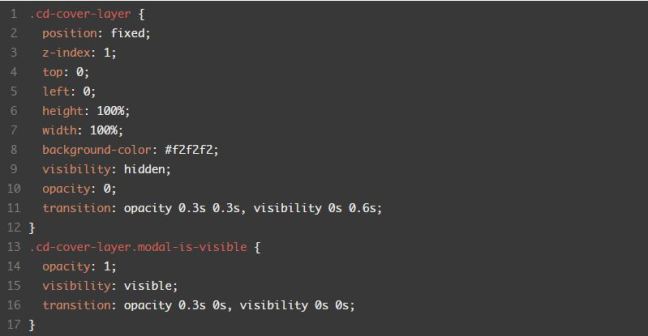
That’s why we decided to use this simple trick instead: when the modal window is fired, a layer (.cd-cover-layer) becomes visible, right below the modal background, and, immediately after, the text becomes visible as well. The .cd-cover-layer and the text have the same color, this way only the text over the blue paths is visible during the animation.

More in details: when a user clicks the a#modal-trigger, the .modal-is-visible class is added to the .cd-cover-layer and the .cd-modal. This class changes the .cd-cover-layeropacity from 0 to 1 and its visibility from hidden to visible, so that the .cd-cover-layerentirely covers the page main content.

svgmodal3

As soon as the .cd-cover-layer opacity transition is over, the opacity of the .cd-modal-content is set to 1:

svgmodal4

Since the color of the .cd-modal-content is the same of the .cd-cover-layer background color, the only visible content will be the one over the blue svg background (which is still animating), while the one over the .cd-cover-layer won’t be visible.

Events handling

To animate the modal background, we animated the 'd' attribute of the  3 <path> elements inside the svg.
First, we defined the two steps of our animation, using the same process described in the Animated SVG Hero Slider article (Events handling section).

Once defined the paths, we added to the .cd-svg-bg a data-stepn attribute (one for each step) equal to the 'd' attribute of the defined path (to easily retrieve it with JavaScript).

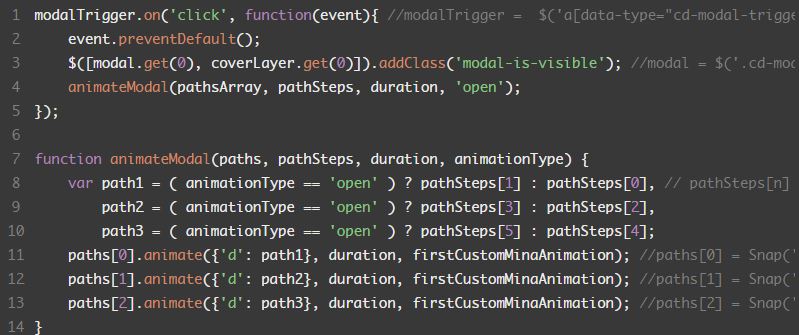
We then used the animate() method provided by Snap.svg to animate the path element.

svgmodal5

Fonte: SVG Modal Window | CodyHouse