Trackbacks e pingbacks WordPress

Trackbacks

Quando fazemos referência a um artigo de outro blogue, num artigo do nosso próprio blogue.

Quando utilizamos o “Press This” bookmark do WordPress sobre um artigo que queremos republicar, o WordPress automaticamente adiciona um URL seguido do texto “Fonte: …”. Isto é um trackback. Ou seja, o autor do blogue irá receber um trackback do meu artigo, indicando que fiz referência a um artigo dele.

No entanto, se retirarmos o URL, não existirá nenhum trackback, mas o próprio mecanismo do WordPress irá verificar automaticamente os links de outros posts no nosso artigo e alerta automaticamente a fonte de origem. Isso é chamado de pingback. Uma das vantagens de ser um processo automático é a redução de adulterar o conteúdo, que é perfeitamente possível num trackback.

Por norma, os trackbacks e pingbacks estão ativos quando criamos um post, mas podemos desativá-los a qualquer altura.

Os trackbacks e pingbacks de blogues externos só serão exibidos se o blogue de origem aprovar a solicitação.

Prós e Contras

Como vantagem, ajuda na otimização de SEO. Como desvantagem, por vezes pode originar problemas de copyright ou propriedade inteletual, como resultado da “confusão” que se pode instalar para o utilizador descobrir qual é o artigo original. E a pior, no caso de trackback, pode ser utilizado para envio de SPAM.

How to create wordpress shortcode? – Darko Gjorgjijoski

This article is about creating WordPress shortcode. If you want to get started you need to have at least some PHP knowledge

This is my first post and from now and so on i will use the blog for simple tutorials to teach you about web development, web design. In this post i will show you how to make your own custom shortcodes.

Shortcodes are some kind of code in wordpress that allow you to display something in easier way without custom fields, editing the template or adding bunch of html. Today i will show you what how to develop your wordpress shortcodes. So, let’s say you want to show your five recent posts with shortocde like this [recentposts number=”5″].

1. You need to create function that will be your shortcode. In the function you need to specify the attributes of the shortocde in this case they are like this

PHP functions have names and attributes(not the same as below, this is php function attributes and below are shortcode attributes.). The function take two attributes $atts and $content.

Realized what is the function name? Now we continue to develop the function. First we create array for the shrotcode attributes and the array have one attribute called number. The default value of number is 3. You can set it or leave like ”.

Then we need to create custom WordPress query. To query the recent posts ordered by date. We do it like this:

After we created the query, we should use it to call the posts.

Now we need to add action to shortcodes and register your shortocde with the following:

Congratulations! That’s all. You created your shortcode. If you don’t know what loops mean in php and wordpress. Please read here. Here is the full function that we developed.

To call the shortocode from your content editor. Simply use the following:

*You can change the style with css. I used html lists to display the recent posts. Feel free to style them or use different html elements.

Fonte: How to create wordpress shortcode? – Darko Gjorgjijoski

Para que servem Hashtags…

Antigamente, o símbolo # (também chamado por nós de “jogo-da-velha”) era usado apenas em algumas situações especiais, como nas artes gráficas. Mas então veio oTwitter e transformou este símbolo mundano em uma sensação online. Hoje, se você está no Twitter, Instagram, Pinterest, Google+, YouTube ou Facebook, você simplesmente não tem como evitar a presença das #hashtags.

Para o iniciante nas redes sociais, as hashtags podem ser algo confuso e inútil à primeira vista. Mas se você entender o seu propósito e aprender a usá-las, as hashtags são uma ferramenta poderosa para ajudá-lo a envolver o seu público-alvo e aumentar o reconhecimento da sua marca.

hashtags

O Que É Uma # Hashtag?

O hashtag é uma palavra-chave precedida pelo símbolo #, que as pessoas incluem em suas mensagens. Essencialmente, ela faz com que o conteúdo do seu post seja acessível a todas as pessoas com interesses semelhantes, mesmo que eles não sejam seus seguidores ou fãs. Por exemplo, digamos que você seja um fã da Apple e que você esteja pensando em comprar um iPhone 5. Ao pesquisar por “#iPhone5″ em qualquer rede social irá mostrar os posts e fotos de todos os usuários que usaram “#iPhone5″ em suas mensagens. As hashtags aparecem como links clicáveis quando usadas em mensagens, bastando clicar sobre elas para ver todos os resultados relevantes.

hashtags

Como As Hashtags Ajudam A Promover Meu Negócio?

Assumindo que o seu perfil nas redes sociais seja público, usar hashtags faz com que as suas mensagens sejam visíveis para qualquer um que compartilhe o seu interesse. Isso faz com que os seus posts não fiquem mais limitados à apenas seus seguidores – o seu conteúdo será acessível a todos os interessados. Escolher a hashtag certa irá ampliar enormemente o alcance das suas mensagens para milhares de potenciais seguidores, fãs ou clientes.

hashtags

Criando Uma Hashtag Eficaz

Para criar uma hashtag, tudo o que você precisa fazer é juntar um # e uma palavra-chave relevante. Você pode inserir hashtags em qualquer lugar em suas mensagens: frente, meio ou fim. Algumas pessoas gostam de colocar as suas hashtags no meio dos posts, enquanto outros preferem inseri-las no final – o resultado é o mesmo, desde que suas hashtags sejam relevante.

As hashtags são poderosas, quando usadas sabiamente. Nada afasta as pessoas mais do que um post confuso com e com hashtags em excesso ou muito longas, como #VejaSóOQueEuTomeiDeCaféDaManhã. Como regra geral, no Twitter não se usa mais do que uma ou duas, mas no Instagram dá pra usar 4 ou 5 hashtags sem problemas.

hashtags

As Hashtags São Todas Iguais?

No formato sim, mas elas variam de acordo com o conteúdo e o seu uso. Costuma-se dividir as hashtags em 3 tipos básicos:

  • Hashtags de Conteúdo: Se você é totalmente novo no mundo das hashtags, em primeiro lugar considere usar hashtags que se relacionam diretamente com a sua marca, produto ou serviço. Hashtags de conteúdo irão expor a sua marca para muitos clientes em potencial, que antes não eram familiarizados com a sua marca. Se você possui uma confecção de roupas, usar hashtags como #camisetas ou #moda irá expor o seu negócio para pessoas que ainda não o conhecem.
  • Trending Hashtags: Outra ótima maneira de aumentar a visibilidade da sua marca é usar as hashtags existentes e que estão na moda (isso é, que estão “trending”). Mas antes de usar uma dessas hashtags, tenha certeza de que a sua mensagens realmente está agregando valor à conversa existente. Se seu post não agrega valor, ele será ignorado e, até mesmo, poderá ser considerado spam. Se, contudo, o seu post é informativo, engraçado ou viral, ele será compartilhado por outros usuários e isso irá ampliar o alcance da sua marca.
  • Hashtags Originais: Às vezes, o problema com o uso de hashtags genéricas ou populares é que seus posts podem se perder no meio de centenas de mensagens que estão usando as mesmas hashtags. Por isso, é uma boa ideia criar suas próprias hashtags, específicas para o seu negócio ou sua marca. Elas poderão ser usadas em campanhas específicas (para uma promoção especial) ou então como forma de fortalecer as suas campanhas de marketing regulares (usadas em todos os seus canais sociais, sempre que relevante).

Fonte: http://pt.wix.com/blog/2013/11/o-que-sao-hashtags/

Object-Oriented Programming in WordPress

  1. An Introduction
  2. Classes
  3. Types
  4. Control Structures: Conditional Statements
  5. Control Structures: Loops
  6. Functions and Attributes
  7. Scope
  8. Building the Plugin I
  9. Building the Plugin II
  10. Document the Plugin I
  11. Document the Plugin II
  12. Inheritance I

Over the last 12 posts, we’ve taken a look at the basics of PHP, the basics of object-oriented programming, how to do so within the context of WordPress, and we’ve even looked at the beginning of more intermediate concepts such as inheritance.

At this point, it’s time to draw this beginner’s series to a close but prior to doing so, I’d like to provide a summary of each of the articles so that we not only have a refresher of the everything that we’ve done, but so that we also have a single summary page to bookmark for reference.

With that said, let’s review everything we’ve covered up to this article. We’ll include links back to the original article, short descriptions, and other pertinent information.

In the first post of the series, we discussed where we were headed with the articles that were to follow. In short, we provided a high-level outline as to what we’d be discussing, and then moved forward from there.

Perhaps the most important take away from this article was understanding “where do I start?” Which is a question many people ask when getting started with programming.

To that, we said:

But those who have been at it for a significant amount of time often forget what it was like when originally trying to figure out how to decipher code, understand why something was written the way that it was, how the author knew to use what function and where, and determine the rationale behind certain implementation decisions.

We’ve all been there at some point, right? We’ve looked at the code, tried to figure out the flow of control, and at one time asked “where do I even start?”

And the purpose of this series is to answer that question.

And so that’s exactly what we aimed to do with the following points that were covered each in their own article.

The purpose of this post was to define the foundation of object-oriented programming – classes. First, we mentioned that classes are typically defined as the following:

A class is a blueprint for creating an object.

But we also recognized that this is a particularly confusing for most people especiallyif they’re just beginning object-oriented programming.

So instead, we talked about class in terms of what characteristics it defines:

So let’s generalize this idea to objects. In fact, let’s substitute one word for another:

A noun is an object.

An adjective an an attribute (or a property).

A verb is a method (or a function).

Additionally, we looked at both good and bad examples as to what defines a class, and we worked on defining a mental model for how to pictures classes when working with them

This ultimately laid the ground work for the plugin that we’d be writing in the future. But first, we needed to make sure that we had a firm understanding of the basics of PHP before moving into the more advanced feature of classes.

In this article, we talked about the two types that exist within WordPress:

  1. Simple Types
  2. Complex Types

And then we defined each of the above as such:

Simple data types are defined as such because the data that they represent is, y’know, simple. That is to say that it will normally fall under the banner of true, false, decimals, and words and/or sentences.

And then we said:

The two primary complex datatypes that we’re going to focus on in this series as arrays and objects. There are more, but they are outside the scope of this series, so if you’re interested, then feel free to take a look at the PHP manual, but I warn you: if you’re an absolute beginner, the content may feel a little overwhelming.

In short, examples of the above can be illustrated as:

  • booleans
  • integers
  • floating point numbers
  • strings
  • arrays
  • objects
  • …and more

Of course, these are primarily useful once we start using them within the context of more advanced features such as conditional statements and control structures.

In the first article in the Control Structures series, we talked about conditional statements.

First, recall that:

“Control Structures” is a fancy term term that describes how we can, ahem, control how the code flows through our program based a number of factors.

The two control structures that we talked about are if/then statements andswitch/case statements, then we looked at examples of each. On top of that, we employed these in some of the code that we wrote in either our plugin or in our example of inheritance.

In the same series, we talked about loops.  Remember:

Assume that we have a set of data, perhaps a set of 10 posts, and that we want to loop through and print out the title and date of each post. Loops allow us to do this.

The list of loops at which we looked included:

  • for
  • foreach
  • do
  • while

And we looked at examples of each and how to use them while iterating through a variety of data structures.

After covering some of the foundational aspects of PHP development, we moved onto covering functions – which can still be used in procedural programming – and attributes, which are unique to object-oriented programming.

To summarize, functions are used to complete a unit of work but they also use some of the aforementioned structures to help complete said work:

Variables, conditionals, loops, and so on are responsible for completing a single unit work, as well; however, each of those work in conjunction with one another to achieve something slightly greater than themselves.

We then took a look at an example of various functions – some which were extremely simply, others which were more complex that leveraged all of the above types, control structures, and loops.

But that’s not all: Since functions can exist within a class and help a class complete their work, they also work in conjunction with attributes (which are the adjectives of an object, if you recall from earlier in the article).

The thing about attributes is this:

They are nothing but variables as we’ve looked at earlier in the series, and they can hold any type of value be it a primitive data type such as a string, integer, boolean or it can reference a more complex data type such as an array or another object.

The thing is, they aren’t locked into a function. Instead, they live at the class level. And when they reside at the class level, there’s a level of scope that they – along with the functions – must have.

From there, we began talking about scope.

In short, scope refers to how variables and functions can be access from third-party objects or child objects within the program.

In the article, we even looked at a high-level diagram as well as some source code that demonstrated the point.

The key takeaway; however, is that scope can come in three different flavors:

  1. public which is available to the class itself and all third-party classes
  2. protected which is available to the class itself and all subclasses
  3. private which is available only to the class in which it is defined

This became even more clear as we began building our plugin using what we’ve learned.

In the Building The Plugin series, we first talked about exactly what we’d actually be building and then we actually began to implement the plugin.

Throughout this process, we learned the importance of planning out the plugin before we actually begin implementation so that we have a roadmap, of sorts, in order to know where we’re headed.

After doing that, we then began the actual implementation of the ideas that we had outlined to the point where we had a fully functional plugin that covered exactly everything we had covered up to this point.

In fact, we made the plugin available for download on GitHub.

But we weren’t done yet. After that, we needed to document the plugin using proper code comments to explicate what each of our files, classes, attributes, and methods do.

In this series of articles, we first talked about the PSR standards as well as the WordPress Coding Standards and we began documenting the basics of our plugin.

However, it wasn’t until the second part of the series that we really began to employ the documentation strategies as providing in the WordPress Coding Standards. In this post, we rounded out the rest of our documentation efforts by providing comments for every class, attribute, function, and even require statement that exists within the plugin.

Ultimately, this rounded out development of the plugin and allowed us to transfer our discussion to a more intermediate topic.

Over the next two posts, we covered one of the more intermediate topics of object-oriented programming: Inheritance. This wasn’t meant to be an all inclusive-primer on the topic, but it was meant to be enough to help those of you with a budding interest in object-oriented programming in PHP become familiar with how it works.

In the first article, we took a look at some of the fundamentals as well as how it’s used throughout the WordPress application specifically when using widgets.

In the final article, we built our own implementation of inheritance that, although very simplistic, provided a workable demonstration for how inheritance works within PHP.

Obviously, we have covered a lot of content in this series. Hopefully, those of you who are just getting started with working in WordPress and object-oriented programming in general have found it useful.

Though I’m not opposed to running another series of advanced topics, I’m more curious about your feedback, comments, and questions on the current series. Please feel free to offer that up in the comment feed.

As far as any future series are concerned, let me know and we’ll see what we can do.

Other than that, good luck with your endeavors with WordPress, object-oriented programming, and so on. I can’t wait to see what you come up with!

Fonte: Object-Oriented Programming in WordPress: A Summary – Tuts+ Code Article

SVG Modal Window

We’ve been experimenting lately with SVG path animations, creating transitions for our image slider and hero slider. Today’s tutorial shows you how to animate at once multiple SVG paths to create a stylish background effect for a modal window.

Inspiration: UI8 Nav on Dribbble

Creating the structure

The HTML structure is composed by 2 main elements: a <section>, used to wrap the action button (#modal-trigger), and a div.cd-modal, the modal window, containing the modal content (.cd-modal-content) and the div.cd-svg-bg, used to create the background covering effect.

An additional div.cd-cover-layer has been used to cover the main content when the modal window is fired (it is positioned between the modal window and the main content of the page).

svgmodal1

Adding style

The .cd-modal window has, initially, visibility: hidden, height: 100% and width: 100% and is in fixed position.
When user clicks the a#modal-trigger, the visibility of the modal window is changed to visible (using the .modal-is-visible class).

svgmodal2

To create the modal background covering effect, we animate the ‘d’ attribute of the<path> elements inside the div.cd-svg-bg > svg (more in the Events handling section).

Our first approach to creating the “masked” text effect consisted in using the SVGforeignObject to include the modal content into the SVG element. This way we could use the path elements as a reference to cut the text outside the animated background. However, we had several issues, mostly related to browsers compatibility.

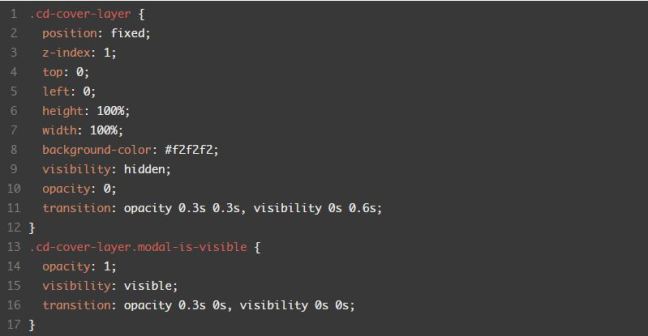
That’s why we decided to use this simple trick instead: when the modal window is fired, a layer (.cd-cover-layer) becomes visible, right below the modal background, and, immediately after, the text becomes visible as well. The .cd-cover-layer and the text have the same color, this way only the text over the blue paths is visible during the animation.

More in details: when a user clicks the a#modal-trigger, the .modal-is-visible class is added to the .cd-cover-layer and the .cd-modal. This class changes the .cd-cover-layeropacity from 0 to 1 and its visibility from hidden to visible, so that the .cd-cover-layerentirely covers the page main content.

svgmodal3

As soon as the .cd-cover-layer opacity transition is over, the opacity of the .cd-modal-content is set to 1:

svgmodal4

Since the color of the .cd-modal-content is the same of the .cd-cover-layer background color, the only visible content will be the one over the blue svg background (which is still animating), while the one over the .cd-cover-layer won’t be visible.

Events handling

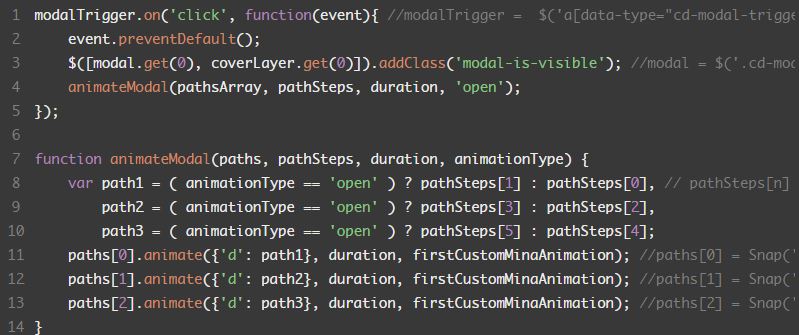
To animate the modal background, we animated the 'd' attribute of the  3 <path> elements inside the svg.
First, we defined the two steps of our animation, using the same process described in the Animated SVG Hero Slider article (Events handling section).
Once defined the paths, we added to the .cd-svg-bg a data-stepn attribute (one for each step) equal to the 'd' attribute of the defined path (to easily retrieve it with JavaScript).

We then used the animate() method provided by Snap.svg to animate the path element.

svgmodal5

Fonte: SVG Modal Window | CodyHouse

Os 10 melhores smartphones do momento

Estas últimas semanas têm sido em grande em termos de lançamentos de smartphones. A Apple lançou dois novos iPhones em setembro e a Google acabou de anunciar os seus novos telemóveis Nexus na semana passada.
Independentemente de ser fã do iPhone ou dos sistemas Android, há milhares de escolhas por aí caso esteja interessado em adquirir um novo telefone. Aqui ficam as melhores opções de telemóveis que pode comprar neste momento.

10. OnePlus 2

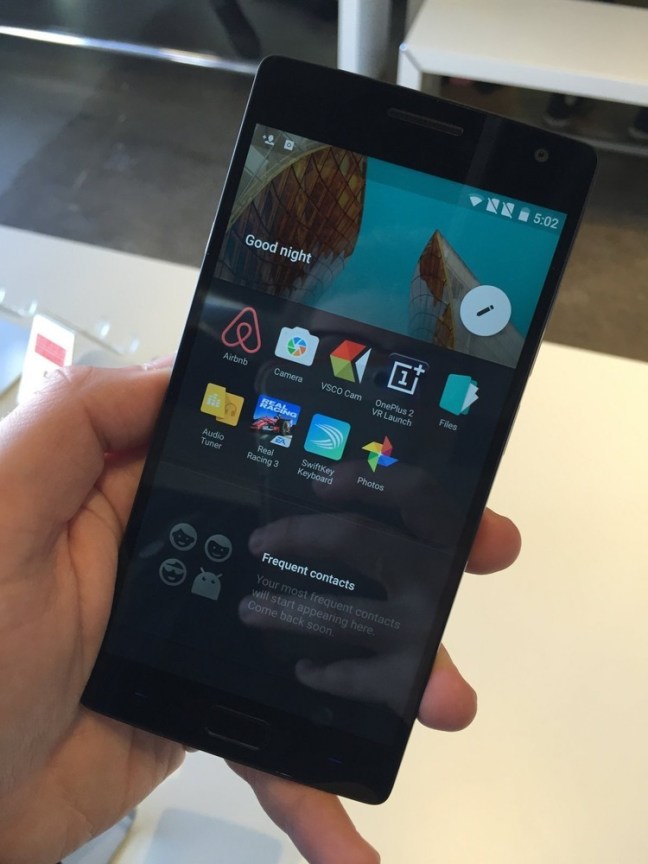
O OnePlus 2 a apresentar a nova característica Oxygen Shelf

O OnePlus 2 é excelente se procura um telefone com um ecrã largo e que não tenha um preço demasiado elevado. A versão de 16GB está à venda por 293€ e o de 64GB por 347€. Está um pouco mais caro do que o modelo do ano passado, cujo preço iniciava nos 267€, no entanto, o OnePlus fez algumas melhorias significativas. Este vem com um processador mais potente de 64 bits, um ecrã de 5,5 polegadas e de 1080p, uma câmara de 13 megapixéis e um sensor de impressões digitais. As especificações são quase idênticas aos telemóveis principais e custa muito menos.

9. Moto X Pure

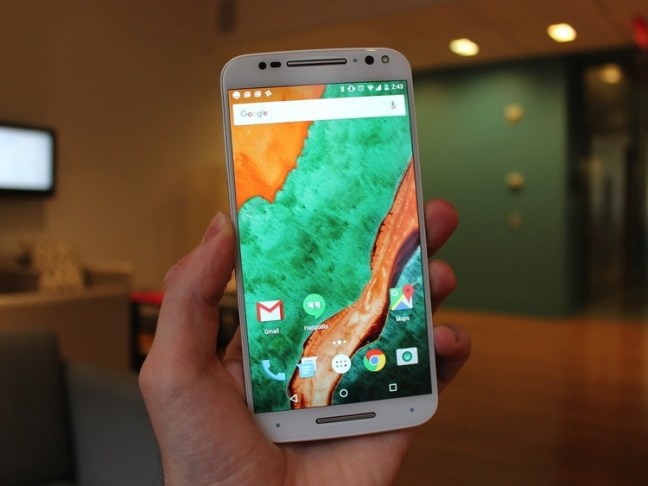
O Moto X Pure da Motorola pode muito bem ser o melhor valor que encontra ao comprar um telemóvel Android. Por 355,99€ consegue adquirir este aparelho com um ecrã de uma incrível nitidez de QHD e uma câmara de 21 megapixéis. Também funciona numa versão Android que não está repleta de aplicações inúteis, o que torna a experiência mais agradável.

É significativamente mais barato do que os novos Galaxy da Samsung e consegue ter quase a mesma experiência que se comprasse um. A grande diferença é que este não é tão elegante e atraente como os novos Galaxy S6 ou S6 Edge e não tem um sensor de impressões digitais.

Se esses fatores não forem determinantes para realizar a compra, vale a pena dar uma vista de olhos ao Moto X Pure.

8. Samsung Galaxy S6 Edge+

O Galaxy S6 Edge+ da Samsung é um telefone lindíssimo. Não só é o telefone mais bonito que a Samsung já fez, como muito provavelmente é o smartphone mais bonito de todos, ponto final parágrafo. É do mesmo tamanho que o Galaxy Note 5 mas não vem com uma caneta e tem um ecrã ligeiramente curvado. Mas apesar de o ecrã curvado dar um aspeto muito bonito ao telefone, não é uma característica assim tão extraordinária que justifique pagar um preço demasiado elevado pelo aparelho.

7. Samsung Galaxy S6 Edge

O Galaxy S6 Edge da Samsung é tão bonito como o seu “irmão” um pouco maior, o Galaxy S6 Edge+, mas tem o mesmo problema – é significativamente mais caro do que o Galaxy S6. O Galaxy S6 Edge é praticamente a mesma versão que o Galaxy S6 só que com um ecrã encurvado.

Pode-se fazer várias coisas engenhosas com a parte curvada do ecrã, tais como acrescentar atalhos para os contactos preferidos e atribuir determinada cor a um contacto para que quando esse contato ligar o ecrã iluminar-se nessa cor. Embora seja bom ter essas características, não alteram assim tanto a experiência geral ao ponto de se justificar o preço elevado do telefone.

6. iPhone 6 Plus

O iPhone 6S está entre os melhores phablets que se pode comprar. Se gosta de ter um telemóvel com um ecrã grande e prefere o iPhone ao Android, esta é uma boa aposta para aqueles que não estejam assim tão interessados em ter o iPhone mais recente.

5. iPhone 6

Embora não seja o iPhone mais recente, não significa que não seja digno de uma espreitadela caso seja um fã da Apple à procura de um novo telemóvel. Tem o mesmo ecrã e o mesmo belíssimo design em metal que os novos iPhones da Apple. Se está à procura de algo que lhe dê quase a mesma experiência e não quer andar por aí a ostentar o telefone mais recente da Apple, o iPhone 6 continua a ser uma boa escolha.

4. Samsung Galaxy Note 5

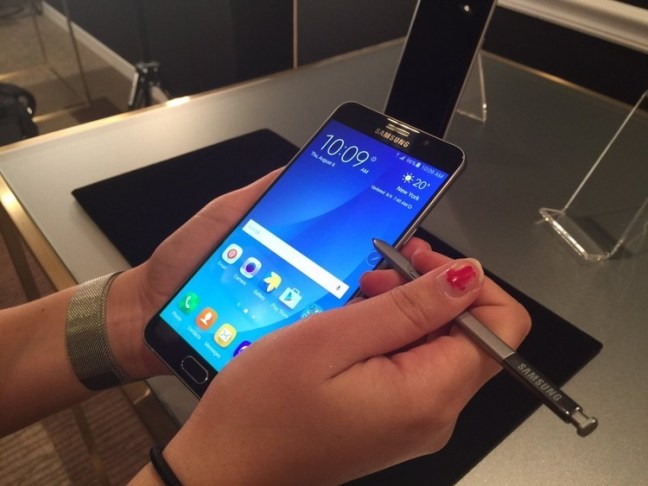
Se está à procura de um telemóvel Android com um ecrã grande, o Galaxy Note 5 é provavelmente a melhor escolha. Tem um belíssimo display, uma ótima câmara e a caneta da Samsung é otimizada para funcionar com a sua versão de Android. Por exemplo, se retirar a caneta do orifício de arrumação aciona um menu especial para aplicações que funciona com a caneta.

O Note deste ano é o melhor de sempre, especialmente desde que a Samsung melhorou o seu design para combinar com o do Galaxy S6. Também pode escrever no ecrã mesmo que o display esteja desligado, o que facilita muito quando é preciso assentar umas notas rápidas. Os novos telemóveis da Samsung também funcionam com o Samsung Pay, que por sua vez funciona em qualquer caixa registadora, independentemente se suporta ou não o sistema NFC.

3. Samsung Galaxy S6

O Galaxy S6 da Samsung é até agora o seu maior marco. A empresa redesenhou completamente o aparelho de raiz, conferindo-lhe um corpo de metal e vidro com um aspeto muito melhor do que os seus telemóveis anteriores. E o ecrã de 5,2 polegadas é o ideal para a maioria das pessoas. A Samsung equipou os seus telemóveis Galaxy S mais recentes com várias características úteis que não vai encontrar em mais nenhum aparelho – tal como a capacidade para acionar a câmara ao premir o botão Home duas vezes e um monitor de ritmo cardíaco embutido.

2. iPhone 6s Plus

O iPhone 6S Plus é um telemóvel de ecrã grande excelente. Embora o novo telemóvel da Samsung Galaxy Note seja o melhor da marca até agora, o iPhone oferece no geral a melhor mistura de hardware, design e de seleção de aplicações. O iPhone 6Plus deste ano é mais rápido do que o anterior, tem uma melhor câmara, um leitor de impressões digitais melhorado e vem com a nova tecnologia de sensibilidade à pressão da Apple.

1. iPhone 6s

O iPhone 6S é o melhor telemóvel para a maioria das pessoas. Não é propriamente uma mudança drástica em relação ao seu predecessor, no entanto vem com várias ligeiras melhorias. Estas incluem um desempenho mais rápido, uma câmara melhor e a tecnologia 3D Touch da Apple. É uma melhor versão de um telemóvel que já dantes era ótimo.

Se gostaria de ter algo maior, então deveria experimentar o iPhone 6S Plus. Contudo, o iPhone 6S de 4,7 polegadas é o tamanho ideal para a maioria das pessoas.

Fonte: Os 10 melhores smartphones do momento

Windows 10: Está a ficar sem espaço em disco?

Com o Windows 10 a Microsoft implementou um conjunto vasto de funcionalidades que visam simplificar cada vez mais a acção dos utilizadores.

No que diz respeito à gestão de espaço em disco, a Microsoft também inovou e com o novo Windows 10 disponibiliza agora uma interface totalmente renovada e até bastante parecida com a que é disponibilizada no iOS. Se está a ficar sem espaço em disco, saiba o que apagar.

O Windows 10 oferece agora uma interface totalmente renovada no que diz respeito à informação sobre a gestão de espaço em disco.

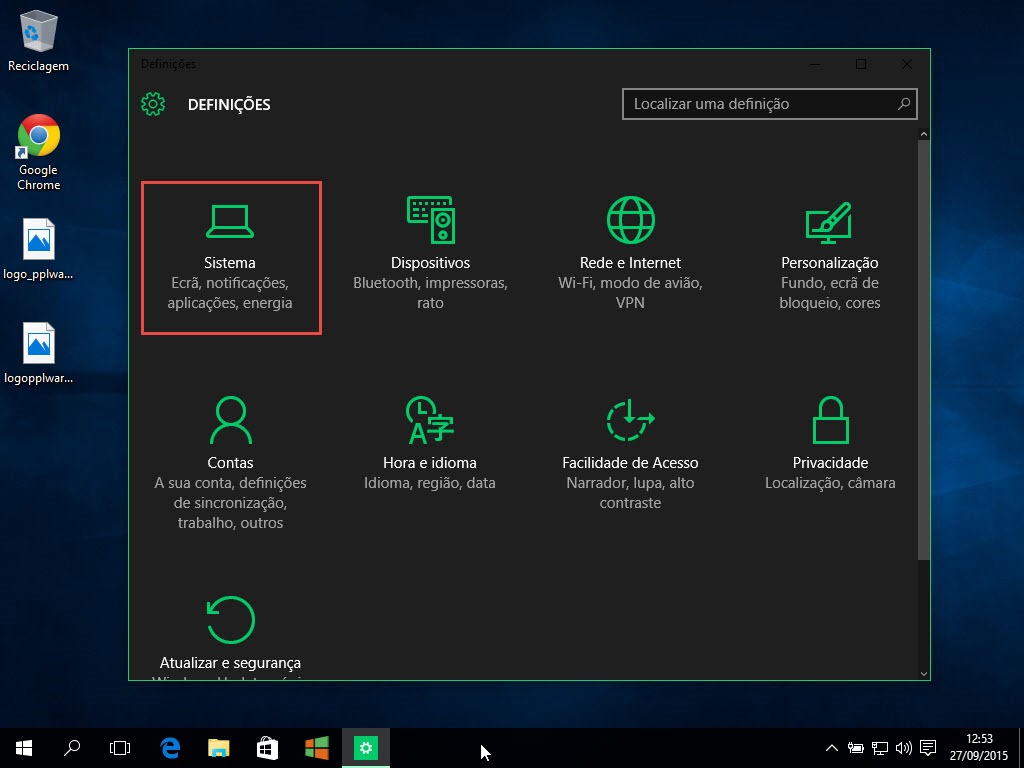
O utilizador continua a poder fazer a gestão via Explorer/Meu computador, existe agora também uma funcionalidade dentro das definições de sistema.

w10_001

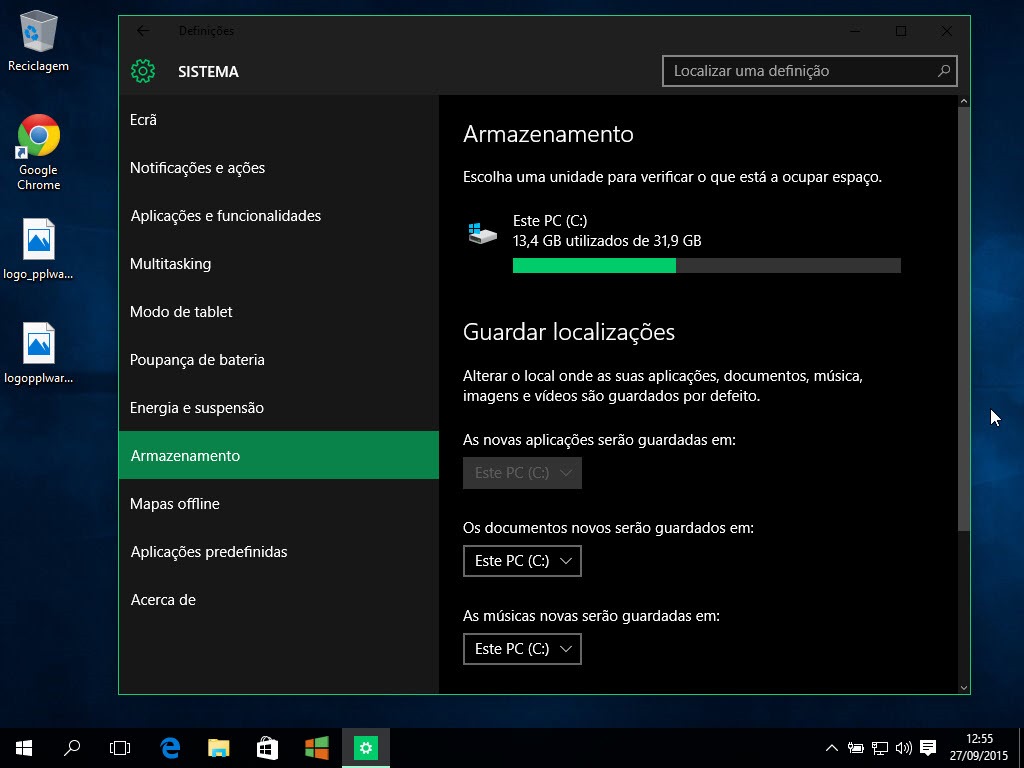
Depois basta escolher no menu lateral esquerdo a opção Armazenamento.

w10_002

Carregando na drive, o utilizador passa a ter uma noção de espaço ocupado por tipo de conteúdo (músicas, fotografias, documentos, apps, jogos, etc).

w10_003

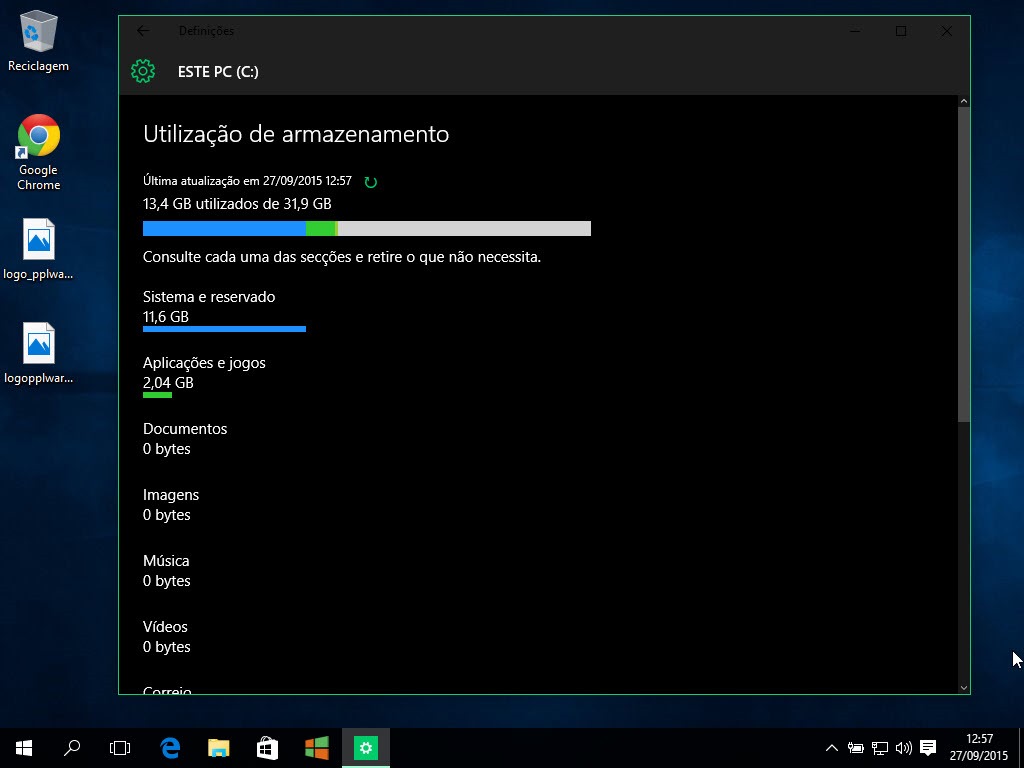
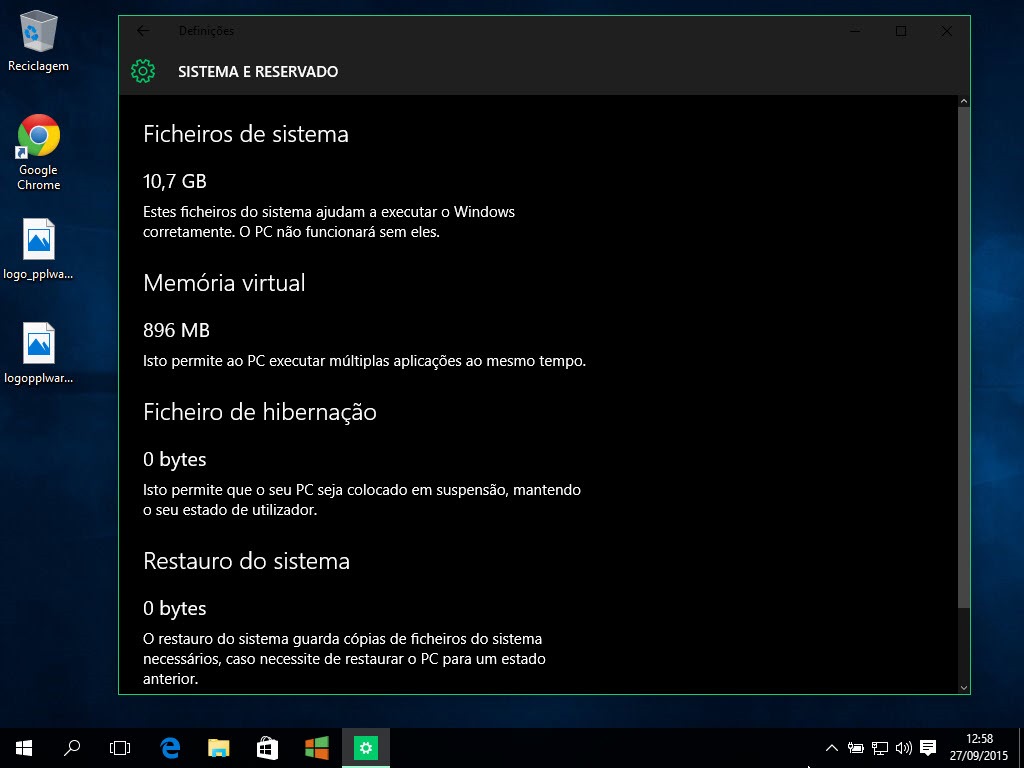
Carregando, por exemplo, em Sistema e Reservado conseguimos ainda saber quando ocupa o sistema, qual o espaço usado para memória virtual, etc.

w10_004

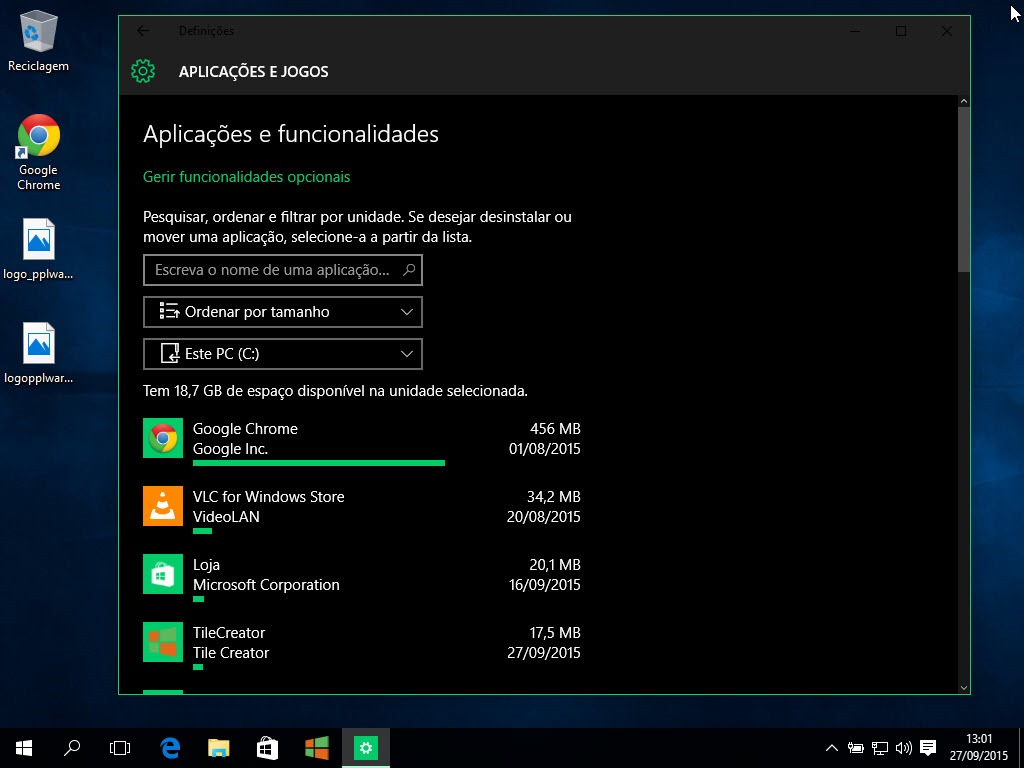
Em termos de Aplicações e Jogos, o sistema consegue listar tudo o que está instalado e facilmente podemos desinstalar o que quisermos.

w10_005

Como viram, com as novas funcionalidades disponibilizadas nesta nova versão do Windows o utilizar passa a ter uma percepção/visão do que tem instalado e o que ocupa mais espaço. Obviamente continuam a existir apps de terceiros para o efeito mas estas “novas ferramentas” desempenham bem o seu trabalho.

Fonte: Windows 10: Está a ficar sem espaço em disco? – Pplware

Unboxing: bq Aquaris A4.5, o Android One chegou a Portugal

A bq, a empresa espanhola que se dedica essencialmente à produção de smartphones de entrada de gama e gama média, juntou-se recentemente à Google para trazer para a Península Ibérica um dos interessantes projectos da Google, o Android One.

Além de outras características, este projecto visa oferecer aos utilizadores Android um smartphone a preço acessível com a garantia de que receberá atempadamente todas as actualizações ao sistema operativo. Assim, chegou recentemente ao mercado o bq Aquaris A4.5 e o Pplware já o está a testar!

Equipado com o Android 5.1.1 Lollipop, o BQ Aquaris A4.5 traz um ecrã IPS de 4,5″, de resolução 540×960 píxeis, um SoC MediaTek MT6735M com um CPU Quad-core Cortex-A53 a 1 GHz e GPU Mali T720-MP1. Tem 1 GB de memória RAM e 16 GB de armazenamento interno (10,5 GB disponíveis ao utilizador), com suporte para cartão microSD até 64GB. É totalmente compatível com as redes 4G LTE nacionais.

Quanto a câmaras, oferece uma câmara traseira de 8 MP com dual-flash LED e gravação de vídeo a 720p, e uma câmara frontal de 5 MP com flash LED, tudo alimentado por uma bateria Li-Po de 2470 mAh. As dimensões são 63,48 x 131,77 x 8,75 mm e pesa 115g.

Além da garantia de actualização para a nova versão do Android Marshmallow, o Aquaris A4.5 tem ainda 5 anos de garantia e 90 dias de música grátis e ilimitada através do Google Play Music.

Assista ao vídeo de unboxing que preparámos:

Especificações

  • Ecrã: 4,5″ IPS de resolução 540 x 960 px, 244ppp
  • Dimensões: 63,48 x 131,77 x 8,75 mm
  • Peso: 115 g
  • CPU: MediaTek MT6735M Quad Core Cortex A53 até 1 GHz
  • GPU: ARM Mali T720-MP1 até 450 MHz
  • Memória RAM: 1 GB
  • Memória interna: 16 GB, expansível através de cartão microSD
  • Conectividade: Wi-Fi 802.11 b/g/n, Bluetooth 4.0 LE
  • Câmaras:: traseira de 8 MP e frontal de 5 MP (com flash)
  • Sistema Operativo: Android 5.1.1 Lollipop, com actualizações garantidas durante 24 meses a partir do lançamento do produto.
  • Bateria: 2470 mAh removível
  • Preço: 179,90€

bq Aquaris A4.5

Fonte: Unboxing: bq Aquaris A4.5, o Android One chegou a Portugal

How to use Chrome DevTools like a Pro

As the name implies Chrome Developer Tools is a tool that allows web developers to interfere and manipulate applications via the browser. With this tool you can:

  • Manage interface problems
  • Debug Javascript Code with using breakpoints
  • Optimize your code

To open DevTools, you can right-click anywhere on the page and select inspect element or you can choose the “tools > developer tools” option from the top right menu.

The following examples are using the Canary version of Google Chrome.

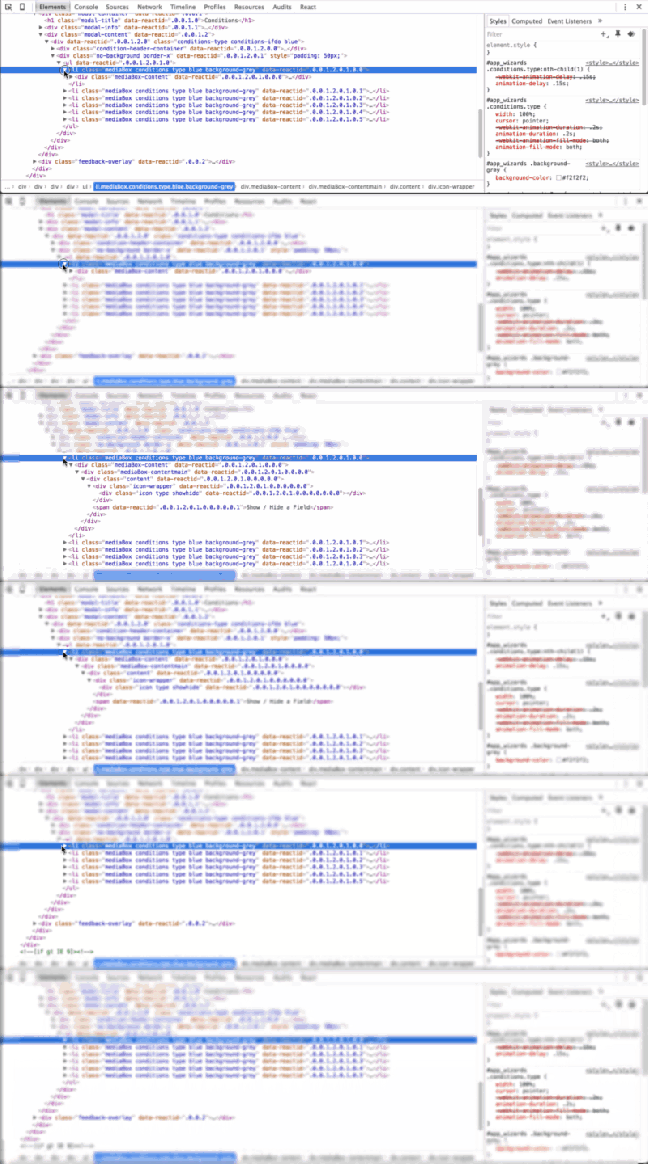
1. Quick-edit a HTML Element

To try it:

  • Select the “Elements” panel.
  • Choose a DOM element within the Elements Panel editor.
  • Double click on the opening tag and edit it.

When you are finished, the closing tag is automatically updated.

2. Go to a Line Number

You can use this feature in the “:linenumber:columnnumber” format from the Sources panel.

To try it:

  • CMD + O

3. Expand All Child Nodes

To try it:

  • Select the “Elements” panel.
  • Choose a DOM element and Alt + Click the arrow within the Elements Panel editor to expand all child nodes.

4. Change DevTools Positions

To try it:

  • CMD + Shift + D

Dock options:

  • Undock DevTools
  • Dock to bottom
  • Dock to right

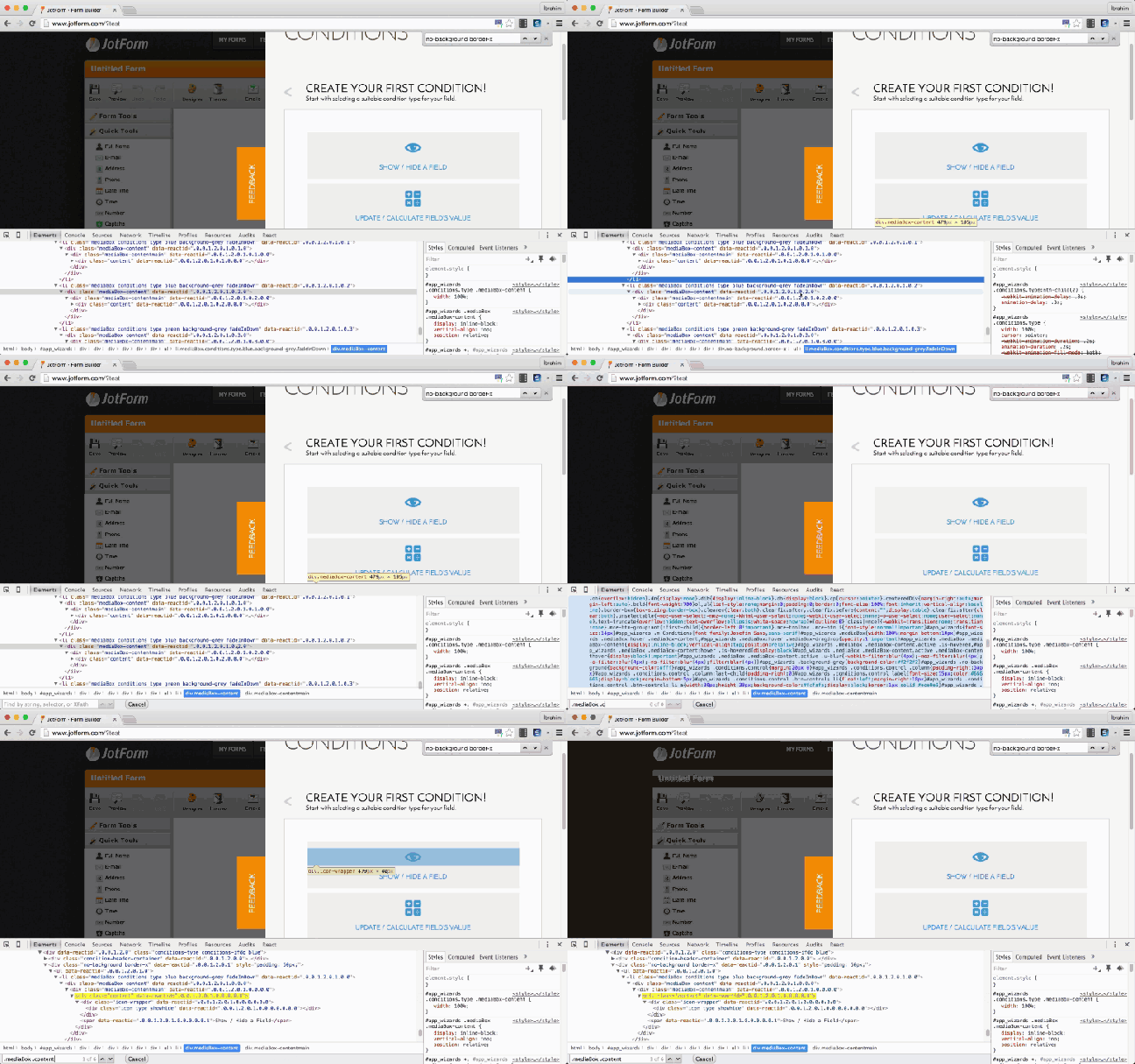
5. DOM Search by CSS Selectors

To try it:

  • CMD + F / CTRL + F and enter your class name or id name base search selector.

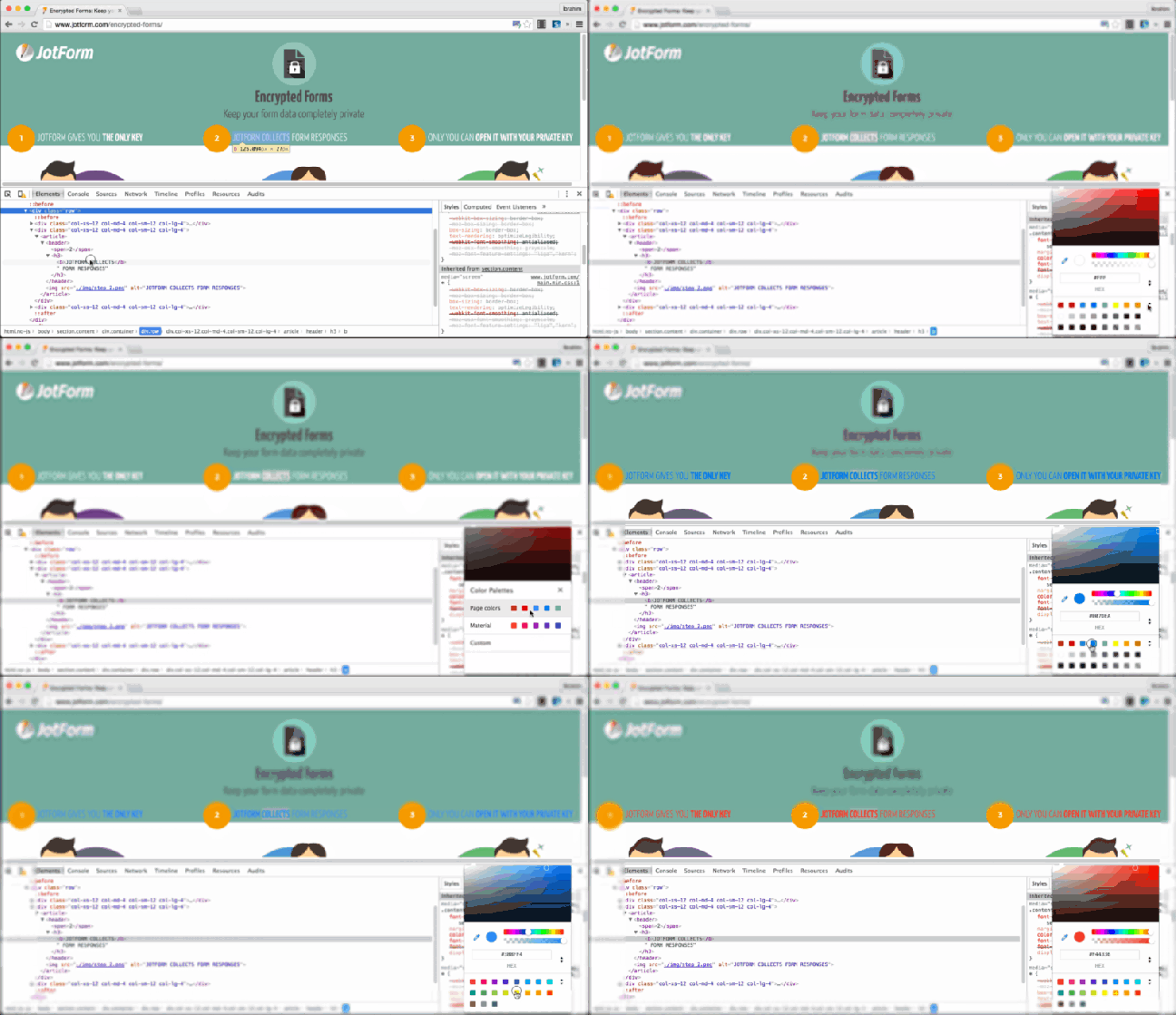
6. Material and Custom Color Palettes

You can click on the little switcher icon in front of hex code. you can choose from the following:

  1. Page Colors: This palette is auto generated from your web site (in your CSS).
  2. Material Design: This palette automatically generates primary colors from The Material Design palette.

7. Multiple Cursor

Move the cursor with the CMD + Click to add multiple cursors. You can alsoundo your last selection with CMD + U.

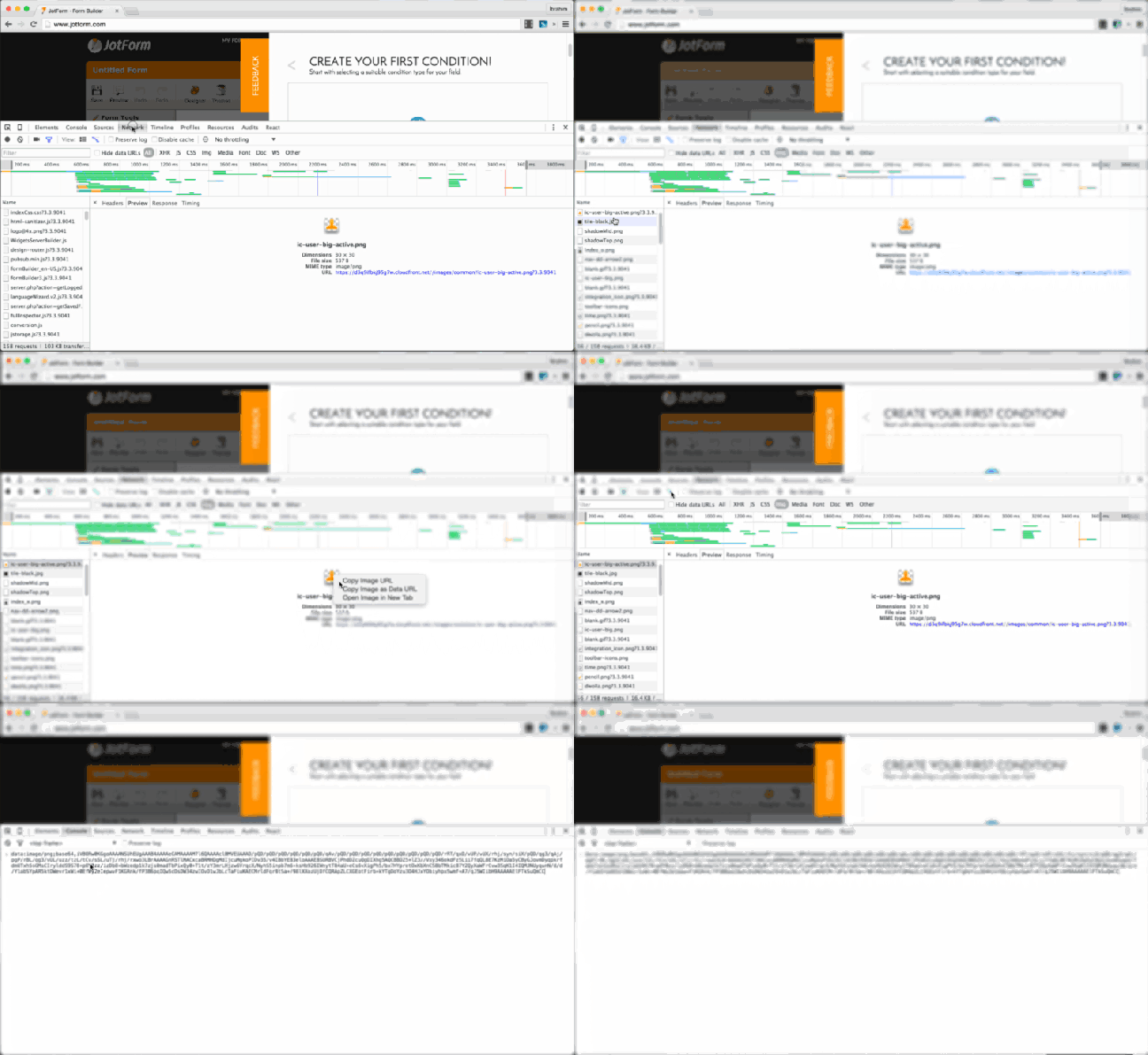
8. Copy Image as Data URI

To try it:

  • Select “Network” panel.
  • Choose your image within the Resources Panel
  • Right click and copy it as a Data URI (base 64 encoded)

9. Triggering of Pseudo Classes

To try it:

  • Right click in the left panel and select “Force Element State”.
  • Alternatively, the toggle element state icon can be clicked in the right panel.

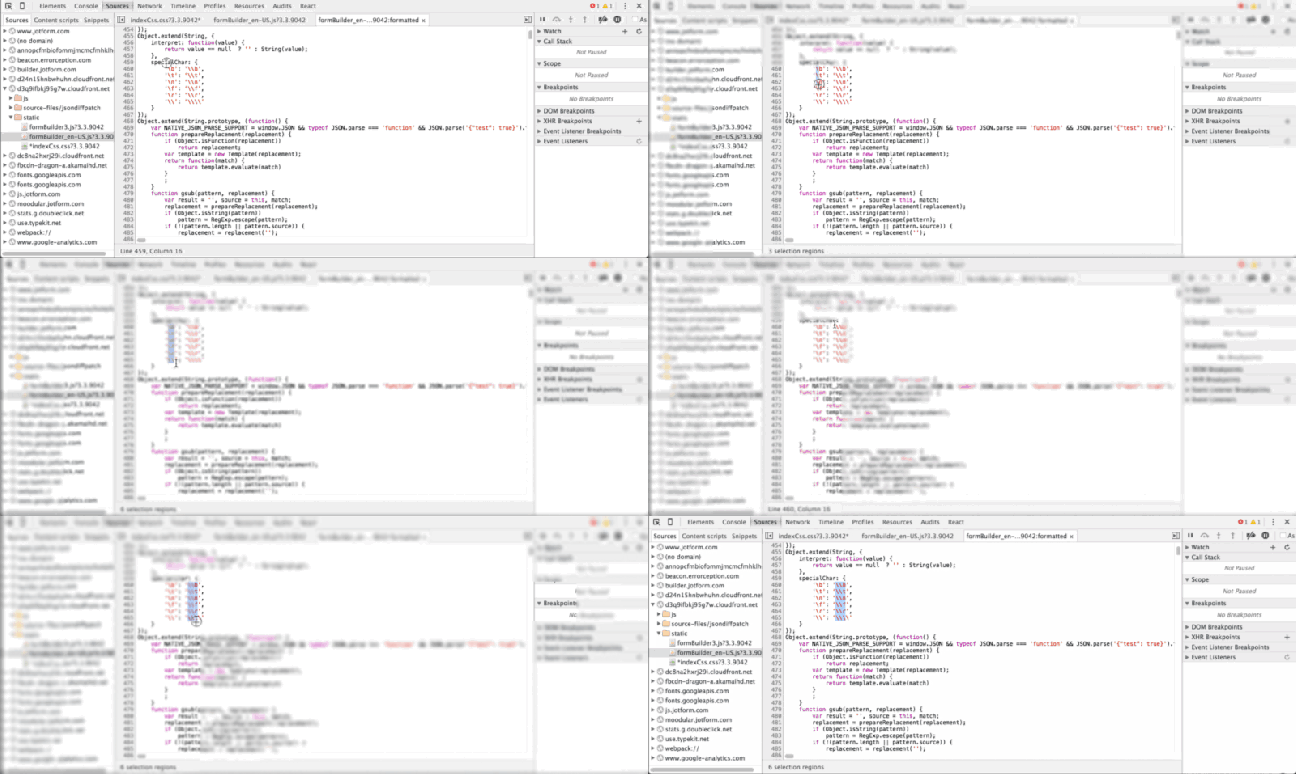
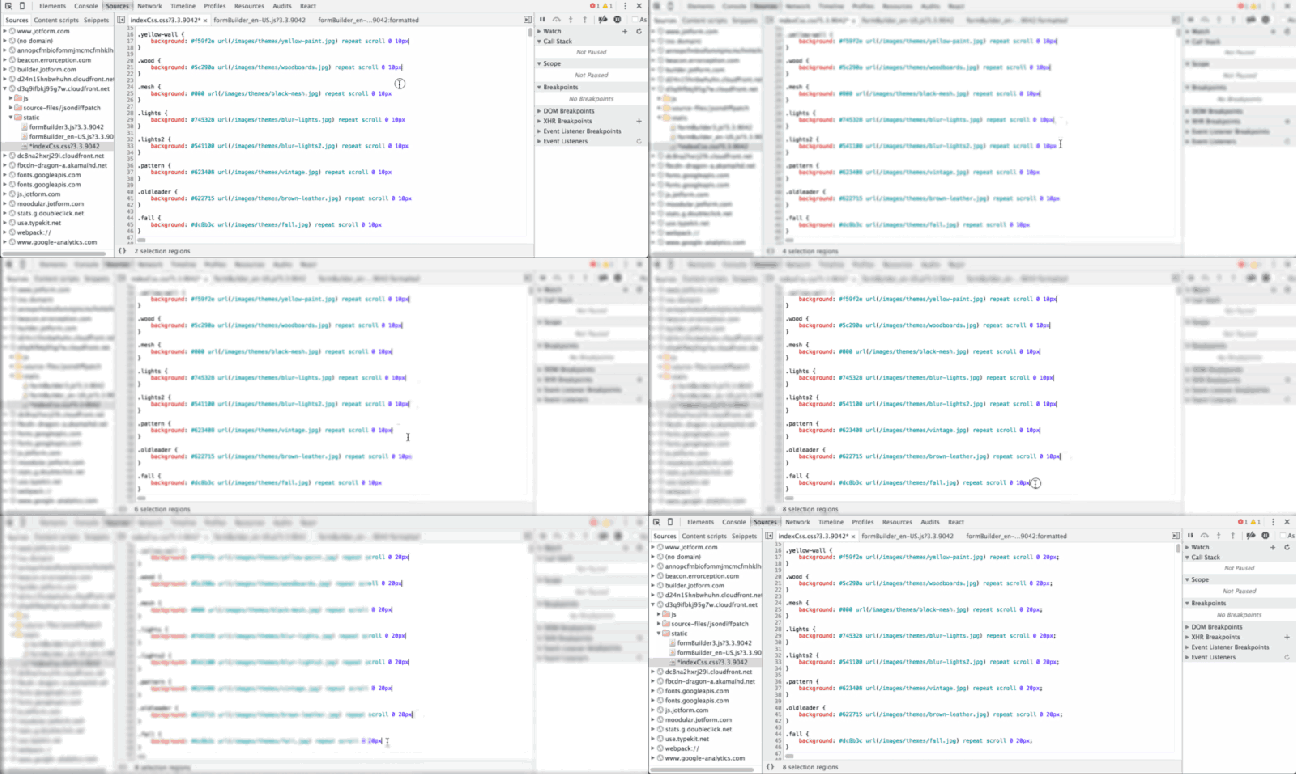
10. Column Selection by Dragging

To try it:

  • Select “Sources” panel.
  • Choose your file within the Sources Panel editor.
  • Hold Alt and dragging the mouse.

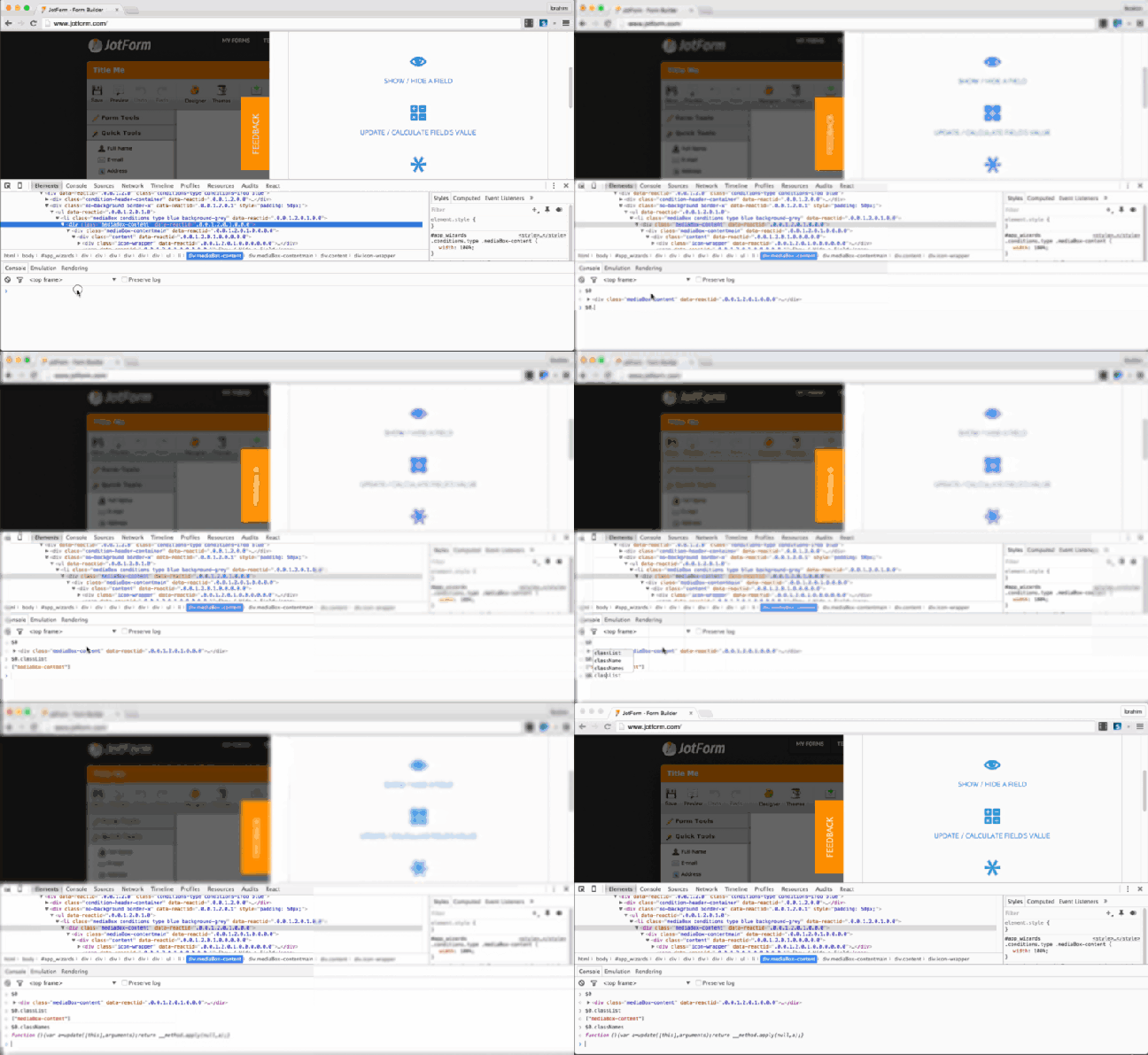
11. Get the current element with “$0”

To try it:

  • Select “Elements” panel.
  • Choose a DOM element within the Elements Panel editor.
  • Click Console and write $0 to access it.

12. Reveal in Elements

To try it, if you choose an a DOM node:

  • Right click on it within the Console panel.
  • Select “Reveal in Elements Panel”.

13. View Event Listeners

To try it:

  • Select the “Elements” panel.
  • Navigate to the Event Listeners and choose an event.
  • You can also view source by right click and choose “Show Function Definition” in context menu.

14. Easing Previews

To try it:

  • Click the easing icon (purple icon) and see a preview.
  • You can view it via choose other previews or you can set new easing format.

15. Media Query

To try this:

  • In Device Mode, click the icon (‘bars’) in the upper left corner of the page.
  • Click the breakpoint (‘blue’, ‘green’, ‘orange’) bars and change.

If you right click on a bar, you can reveal its position within the source code.

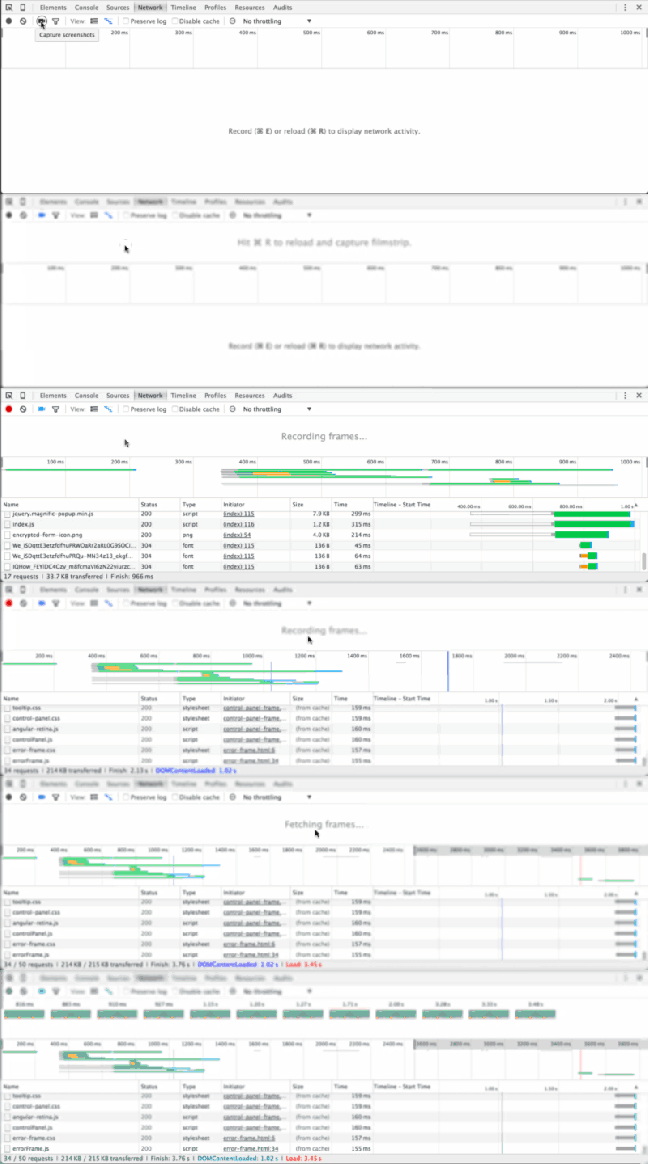
16. Network Filmstrip

“Film Strip” shows page rendering screenshots and times from start to finish. You can click a screenshot and view in the timeline-style view.

To try this:

  • Select “Network” panel.
  • Click “Camera Icon”.
  • Reload page.

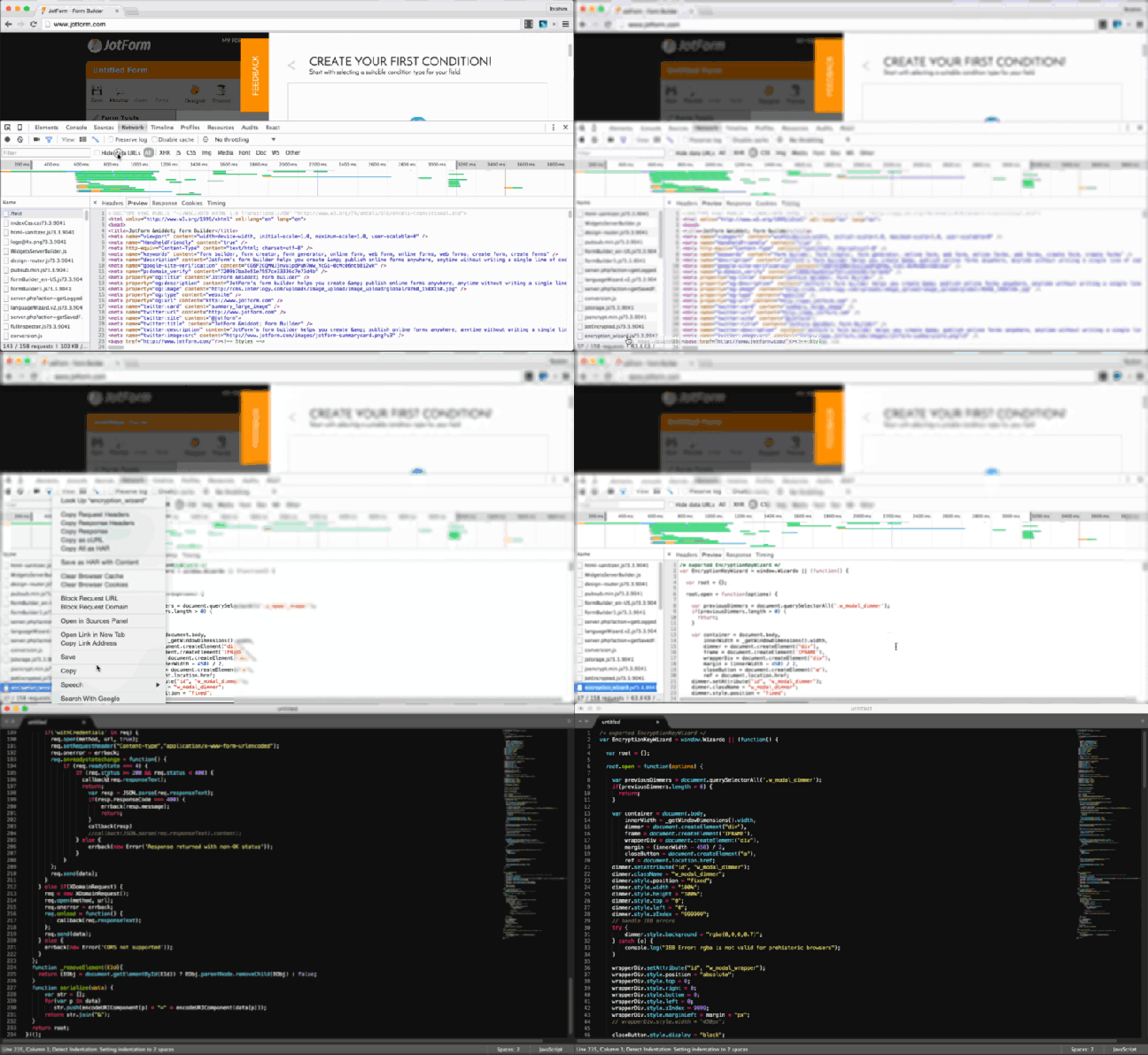
17. Copy Response

You can copy the response/request headers of a network resource.

To try it:

  • Select “Network” panel.
  • Choose your file within the Resources Panel.
  • Right click and click “Copy Response”.

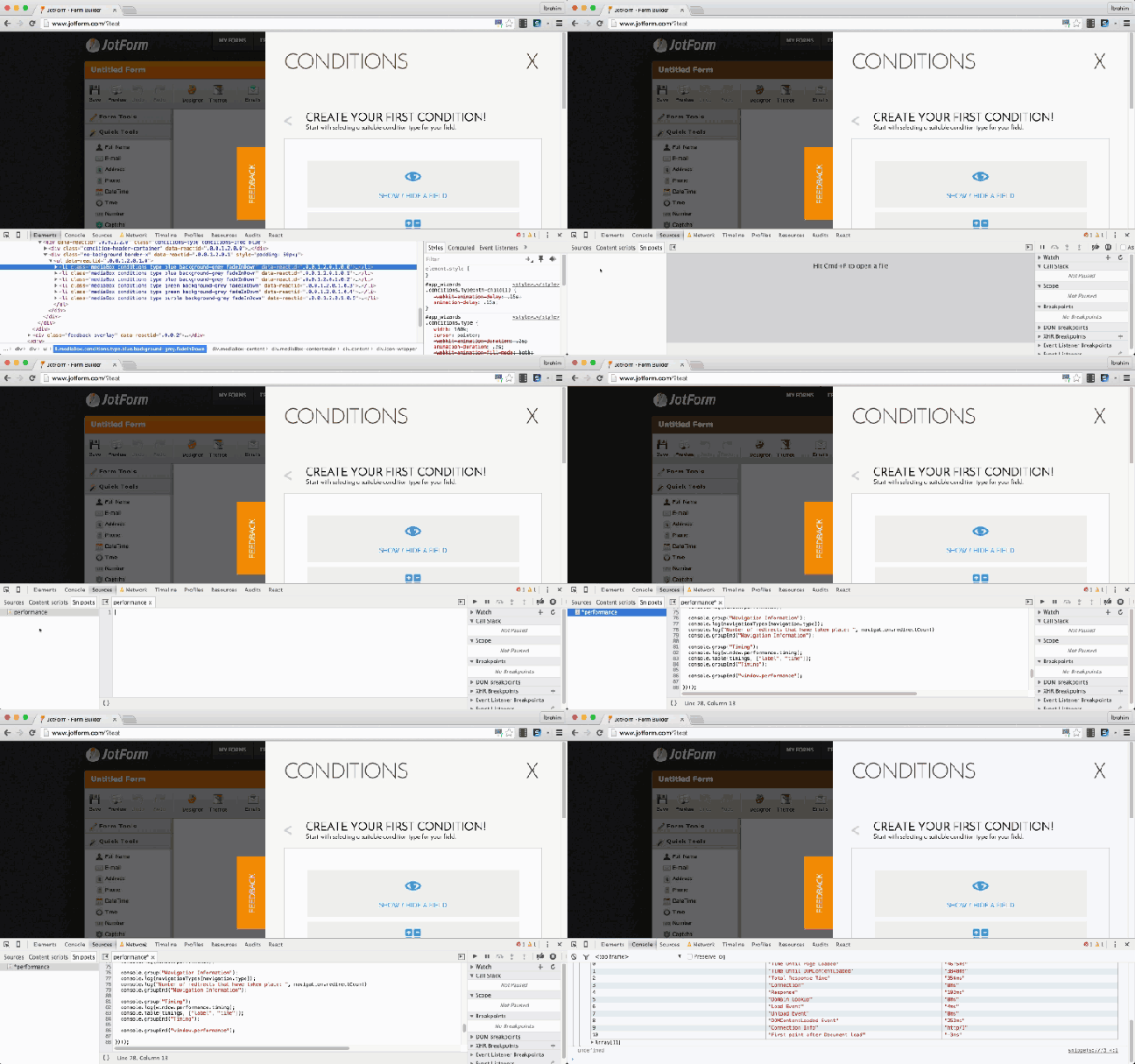
18. Run Predefined Snippets

To try it:

  • In the left sidebar: Sources > Snippets
  • Right click > Select New
  • Enter a file name and write your snippets in the right panel
  • Right click on the snippet and select Run

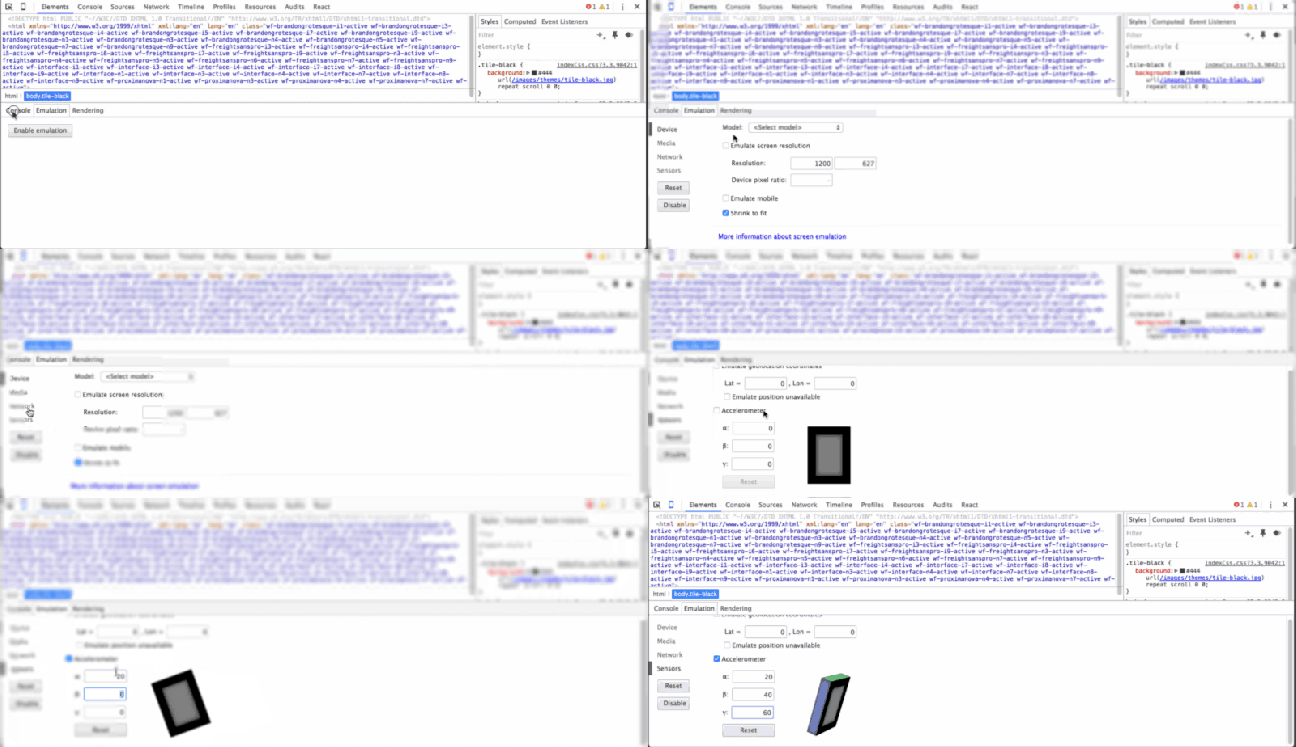
19. Device Emulation Sensors

You can also simulate mobile devices sensors like:

  • Touch Screen
  • Geolocation Coordinates
  • Accelerometer

To try this:

  • Select “Elements” panel.
  • Click “Esc” and choose “Emulation > Sensors”

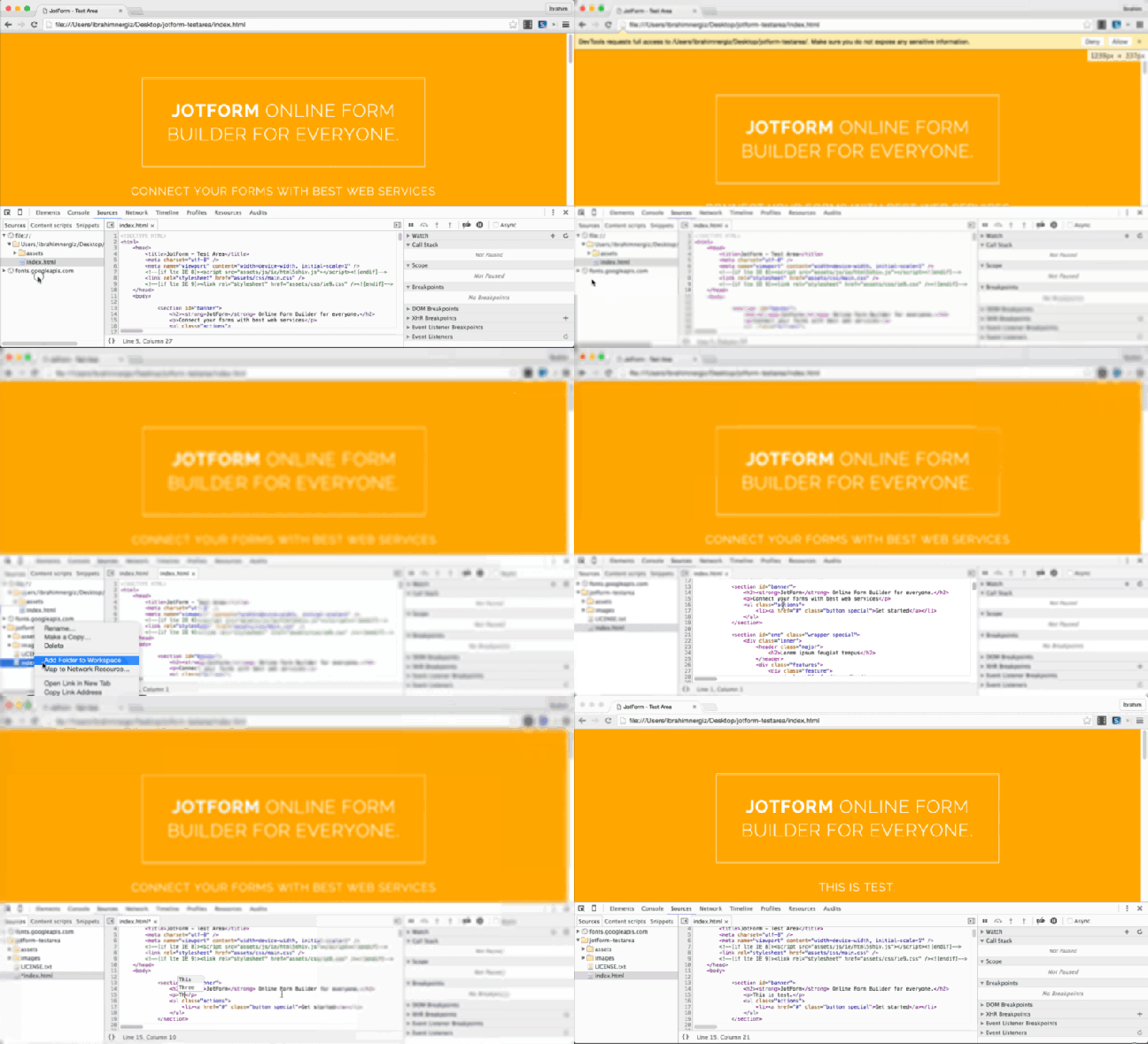
20. Workspaces

To try this:

  • Select “Sources” panel.
  • Right click within sources pane and choose “Add Folder to Workspace”
  • Choose your file and right click > Map to Network Resources
  • Change your file code and view it.

References:

Fonte: How to use Chrome DevTools like a Pro — JotForm — Form Builder — Medium

15 Free HTML CSS3 Social Media Buttons

Muito simples de integrar. Usei um destes para OpenCart.

Social Button Collection

Includes differnt shapes and sizes of attraive social media buttons in css which can be easily added to your existing website code.

Demo | Download

social buttons

Pure Social Buttons in css3

A rolling effect with horizontal display of modern social icons will blow your mind.

Demo | Download

rolling css social button

Fancy Buttons

Another visual treat to the website  visitors to share your content or bookmark the website on their timeline.

Demo | Download

style button

Hover Fancy

This time you will find a different hover style which ends with a text display.

Demo | Download

fancy css

Sexy Social Buttons

Color effect on hover will display the original color of the top social network websites.

Demo | Download

sexy social buttons

Social Buttons Slide

Four major social media networks which can be showed up in your blog with vertical slide animation. The snippet also shows the social counter stats of your page or shared link.

Demo | Download

social slide

Social Footer

Social Footer with long shadows which can be used on footer of the page.

Demo | Download

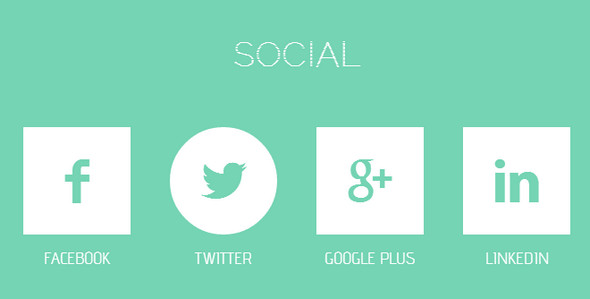
social media icon for footerSocial Section

A set of social icons with nice hover effect.

Demo | Download

social buttons

Social Share

A social sharing icon set with three popular networks Google, Facebook, Twitter.

Demo | Download

social share

Social Networks

A bar of fixed social networks.

Demo | Download

social networks

 Circular Social Icons

A three icons showcasing Google, Facebook, twitter in all its glory.

Source | Download

circular social icons

Share Buttons

A set of social media share buttons with a 3D effect that makes you want to click them!

Demo | Source

Share Buttons

Color Changing Social Bar

On hover on any of the social network icons the background portion will change color similar to the network.

Demo | Download

color social icons

Flat Social Buttons in CSS3

A long version of share buttons to match your website sidebar.

Source

flat long buttons

CSS Social Ribbons

Simple yet stylish CSS Social Ribbons.

Source

social ribbons

Social Navigation

A vertical style navigation.

Source

social navigation

Fonte: 15 Free HTML CSS3 Social Media Buttons